



A step-by-step guide for building this app from a completely empty SNOW instance — written for someone newer to ServiceNow.
Use-Case:
When creating change requests in a ticketing system like ServiceNow (SNOW), the data in them is very dependent on the diligence of the user. This is usually a very manual process and as such it is subject to inaccuracies, incompleteness etc.
On the other hand, Forward Networks can know the before and after state of device(s), so it makes sense to wire the two together. A change ticket in SNOW triggers a diff analysis in Forward for the devices in that ticket.
What you're building
By the end of this cookbook you'll have a ticketing app where change requests automatically trigger workspace creation in Forward, then get verified against a new network snapshot before the case can be closed. A link to the diff between the two is put into the ticket as evidence of the change and its effects. The diff contains not just configuration details, but also the device state - ARP entries, routes etc.
Here is a diagram of the flow:
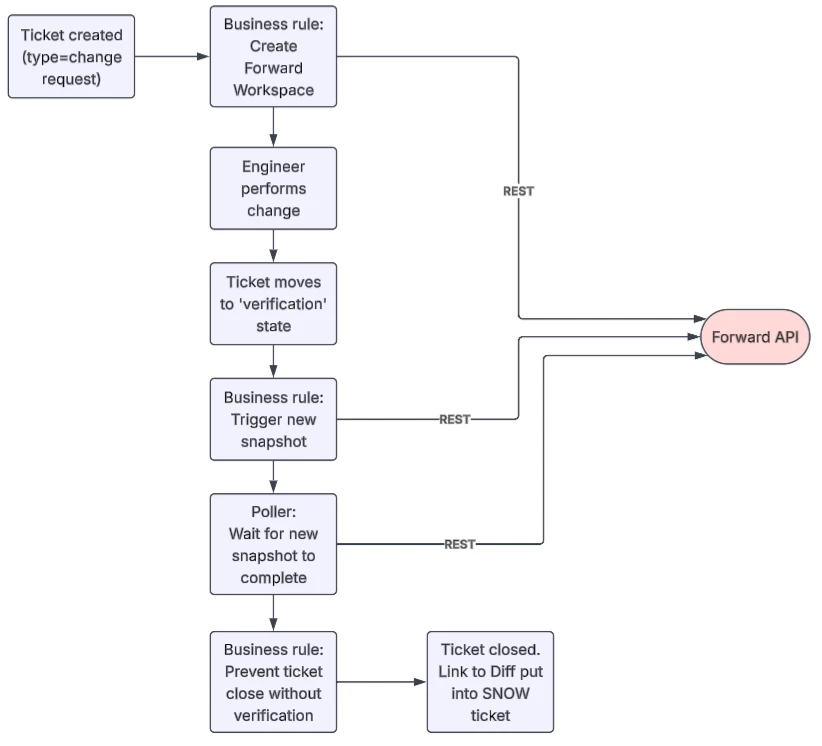
Support tickets (u_type = support_ticket) skip all of this entirely — no workspace, no snapshots etc. Only change requests touch Forward at all.
Before you start
You'll need:
- A ServiceNow instance you have admin rights on (a Personal Developer Instance is fine for following along).
- This document uses the Australia release of ServiceNow
- A Forward Networks account with API access, and the network ID of the Forward network you want ticket workspaces created against. You'll paste this ID into the app in Recipe 4 — everywhere this guide shows <YOUR_FORWARD_NETWORK_ID>, swap in your real one.
- The version of Forward in use at the time of writing was 26.6
Some terms
If you are not a ServiceNow person, these terms may be useful:
| Term | What it is |
|---|---|
| Table | A database table + form definition. |
| Business Rule (BR) | Server-side script that runs automatically on insert/update/delete/query of a table. |
| Scheduled Job | A script that runs on a timer, independent of any record event. |
| UI Policy | Client-side rule that shows/hides/locks fields based on conditions — no code needed for simple cases. |
| UI Action | A button/link on a form. Can run client script, server script, or both. |
| REST Message | A stored outbound HTTP integration: one auth config, plus one or more child "HTTP Methods" (individual endpoints). |
| System Property | A named key/value setting, editable without touching code. |
| Fluent SDK | The @servicenow/sdk TypeScript library — you write Table(), BusinessRule(), etc. as code, and it compiles that into the records ServiceNow actually stores. |
Step 0 – Get into your Personal Developer Instance
Once logged into developer.servicenow.com, you need to request a PDI. A PDI is a temporary development version of ServiceNow that you can use for experimentation. It disappears after a period of idleness. In this document, the Australia version was requested.
To request a PDI, you can type ‘I want to create a ticketing system’ into the chat box and it should spin up a PDI for you.
If you have already created a PDI, log into developer.servicenow.com and you should see the PDI is ready. Click the ServiceNow Studio button:
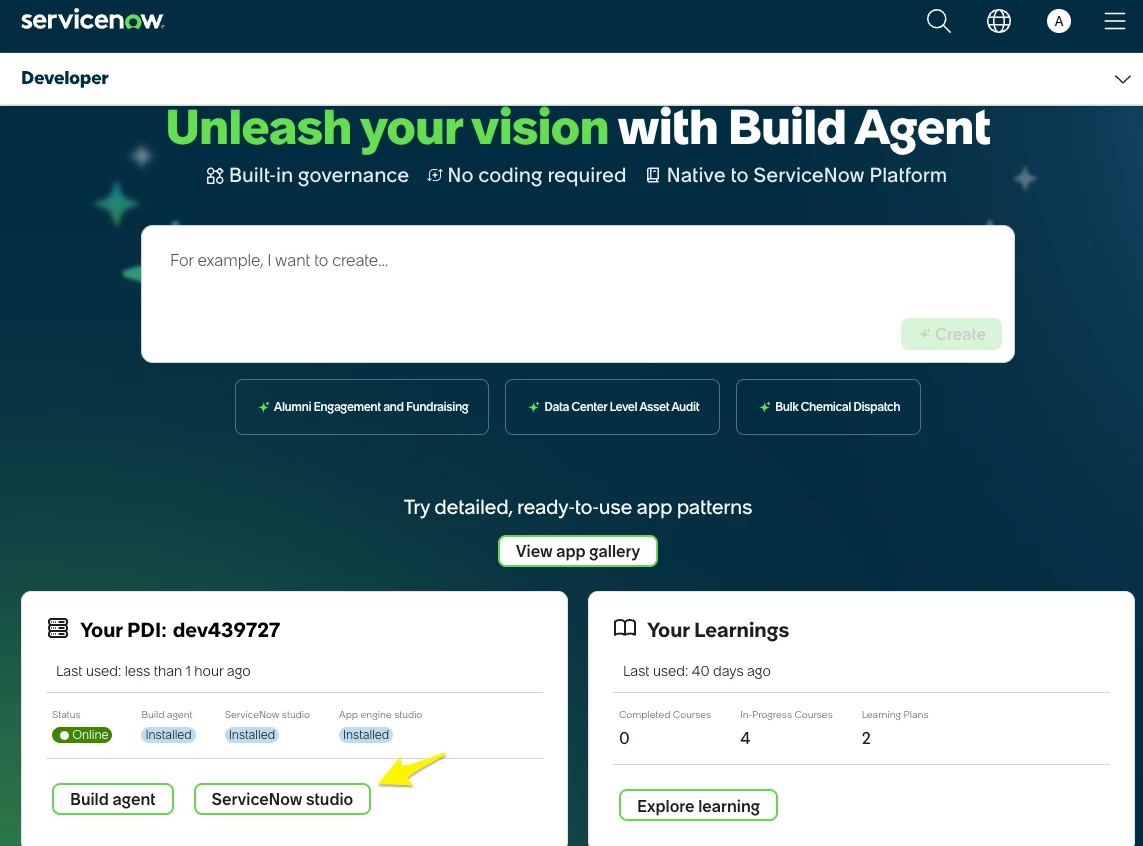
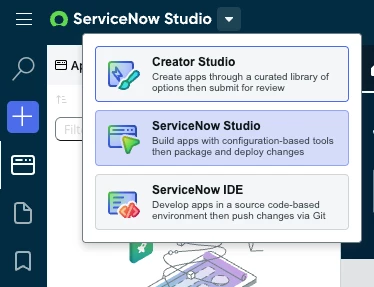
You should end up here, but I use ServiceNow IDE for most of this cookbook, so switch to that:
Step 1 — Scaffold the application
Goal: get an empty Fluent project connected to your instance.
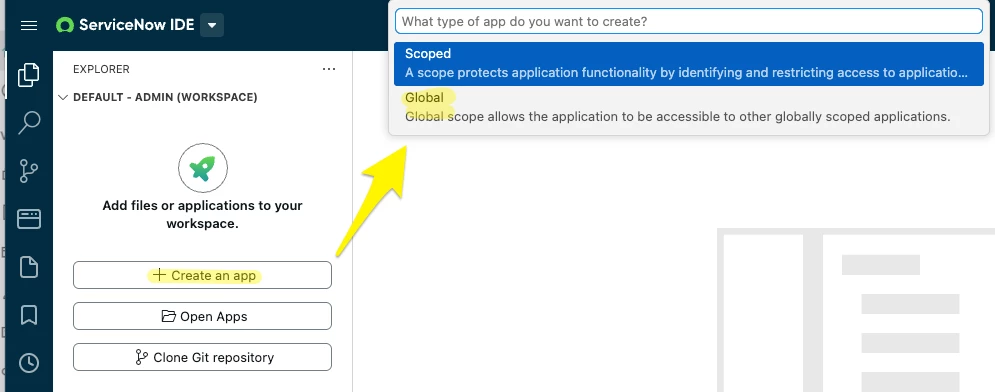
- Go into ServiceNow IDE which should have a ‘create an app’ button in the left bar. Choose Global scope for simplicity:
- Give it a useful name and description
- ServiceNow will suggest an application name (it prepends a number on the front of your name to ensure uniqueness)

- Use the NowSDK boilerplate option
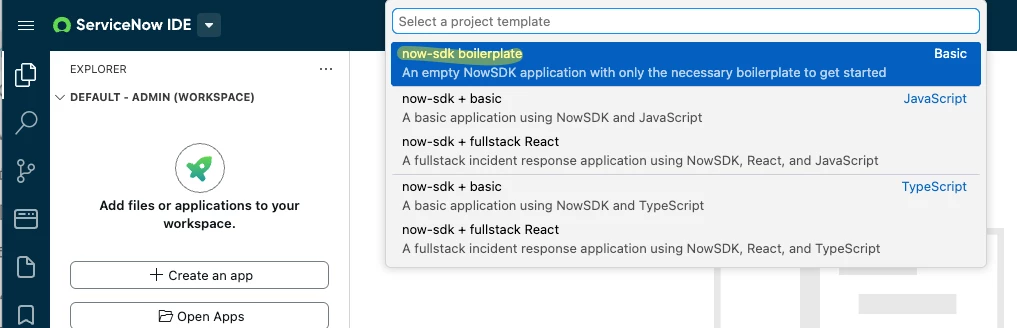
- In 30 seconds or so you should have a basic app structure created. On the bottom bar, I have found the Build Agent to be mostly unable to help me, but the ‘Build and Install’ button will become useful in the coming steps.
- You should now have a src/fluent folder which only has a ‘generated’ folder in it. This fluent directory is where our forms, tables and business rules are going to be created for the ticketing app.
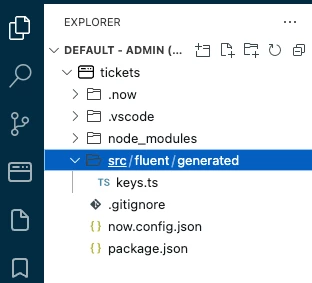
- Create three folders under /src/fluent:
tables
forms
business-rules
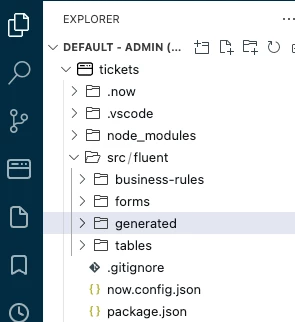
Now that we have created the basic app structure, let us move on to the REST calls that the app will need to use.
Note
Why Global, not Scoped? Every ServiceNow customization lives inside an application, and every Application has a scope. Global scope means no sandboxing — anything can read/write your tables, and your table/field names use a plain u_ prefix. Scoped apps are sandboxed from each other (table names get a vendor-specific prefix like x_acme_tickets_), which is generally more secure for production apps, but adds overhead: cross-app table access needs explicit permission, and every reference in your code needs the longer prefix. For a first build, Global keeps things simple.
Table and field uniqueness: When you create a Global app, ServiceNow assigns it a unique numeric ID at creation time — in this cookbook's original app that was 1620558. You will see things prepended with u_1620558 throughout the app. Every global table shares one flat u_ namespace across the whole instance, so this number is baked into every table name you create under this app (u_1620558_tickets_change, u_1620558_tickets_netdevice, and so on). It's assigned once, automatically, when the app is created. Your own app will get a different number; wherever this cookbook shows 1620558, expect yours to look different.
Step 2 — Create the REST Message to Forward Networks
Goals:
- Create a reusable definition of the three Forward API calls this app needs
- Create a basic auth credential stored for use by the API calls.
A REST Message in SNOW is a container: one base auth config, plus named child HTTP Methods — individual endpoints your scripts can call by name later.
- Go to the classic UI - replace <YOUR PDI HERE> with your own ‘dev123456’ type instance ID:
https://<YOUR PDI HERE>.service-now.com/now/nav/ui/classic/
- Click all and search for ‘system web services’, then look under Outbound and select REST. You might as well favourite it so you can find it easier next time.
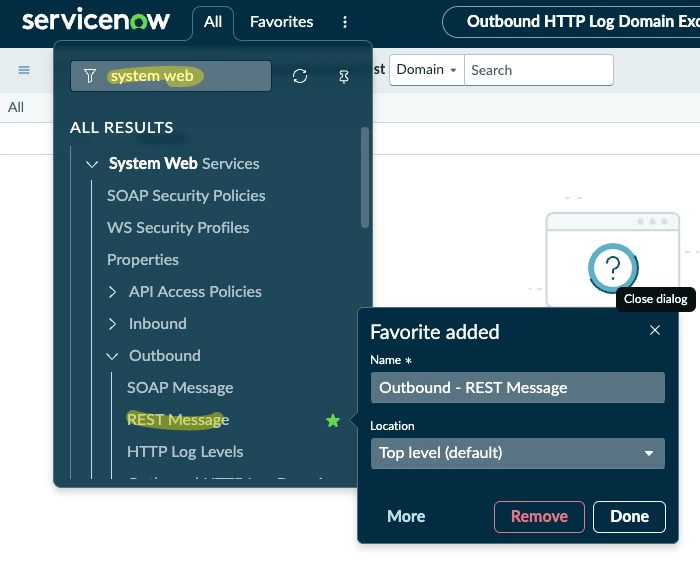
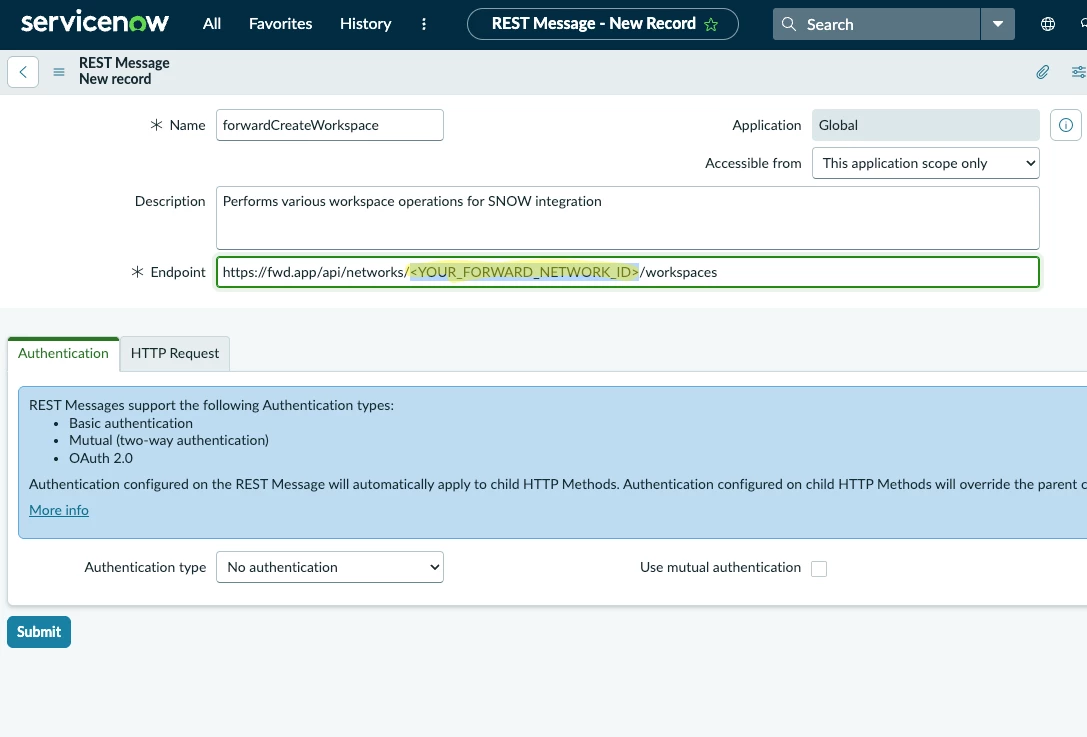
- In this screen, create a new REST group named forwardCreateWorkspace.
- Enter the API endpoint, inserting your networkID where indicated in the screenshot:
- Set Authentication type to Basic. You need to create a credential record to hold your Forward API username and secret. The only way I have found to do this is by clicking the magnifying glass and popup window allows you to create a new credential to hold your Forward API key and secret:
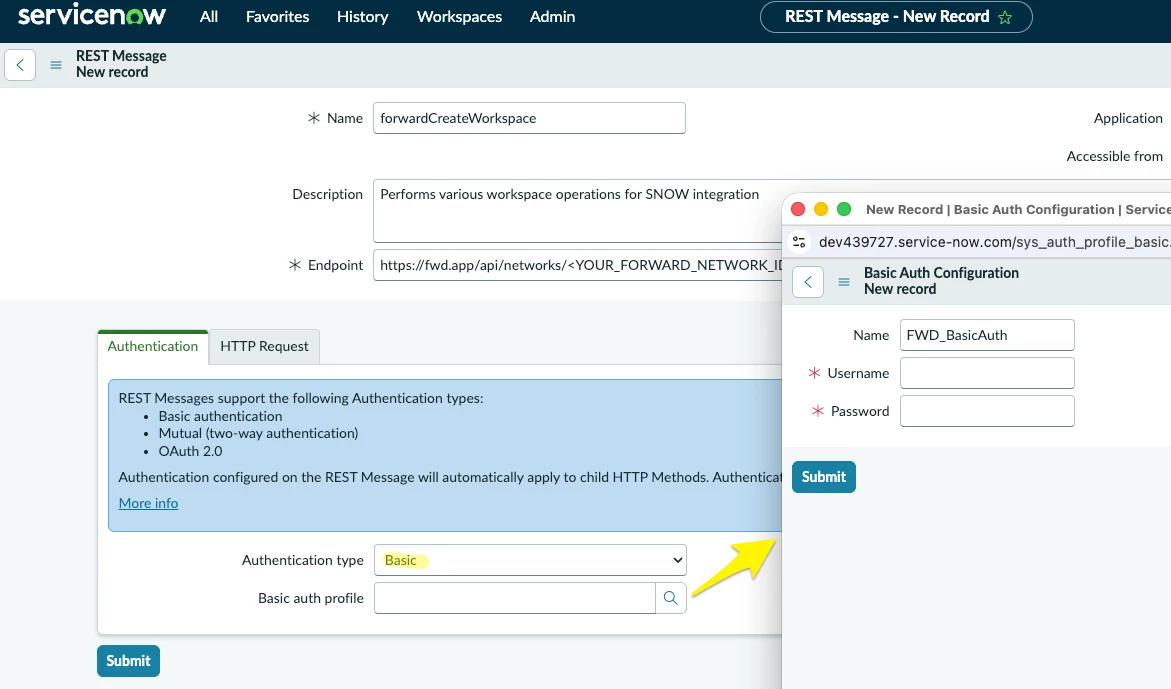
- Submit the form, then go back in to edit it again.
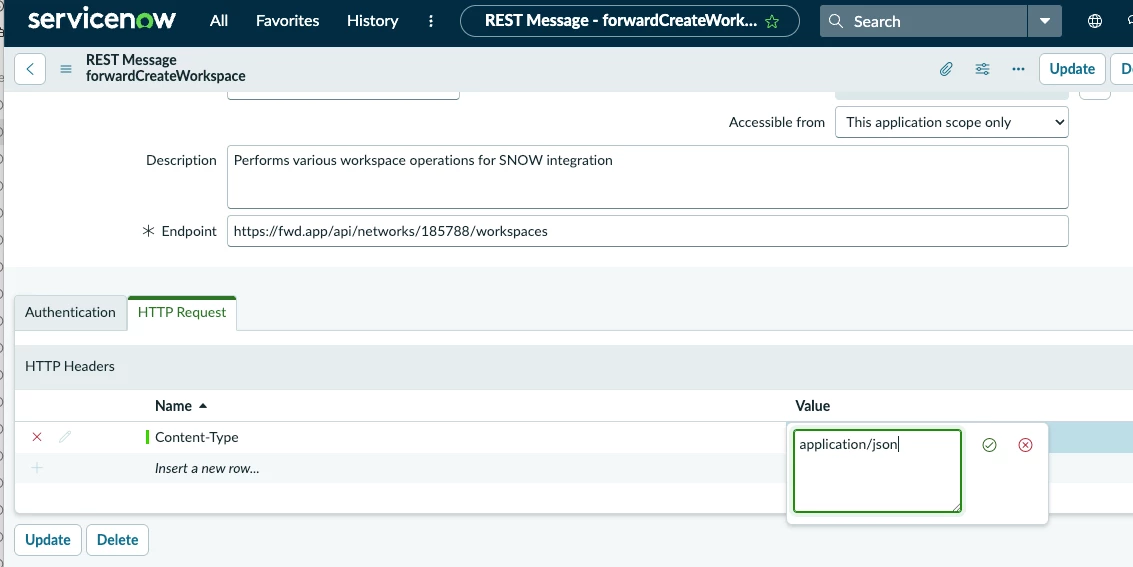
- In the HTTP Request tab, specify an HTTP header to say we are using JSON:
At the bottom of the screen, add three HTTP Methods (there may be a ‘defaultGet’ method that was created automatically. You can change this to become a ‘createWorkspace POST’ instead):
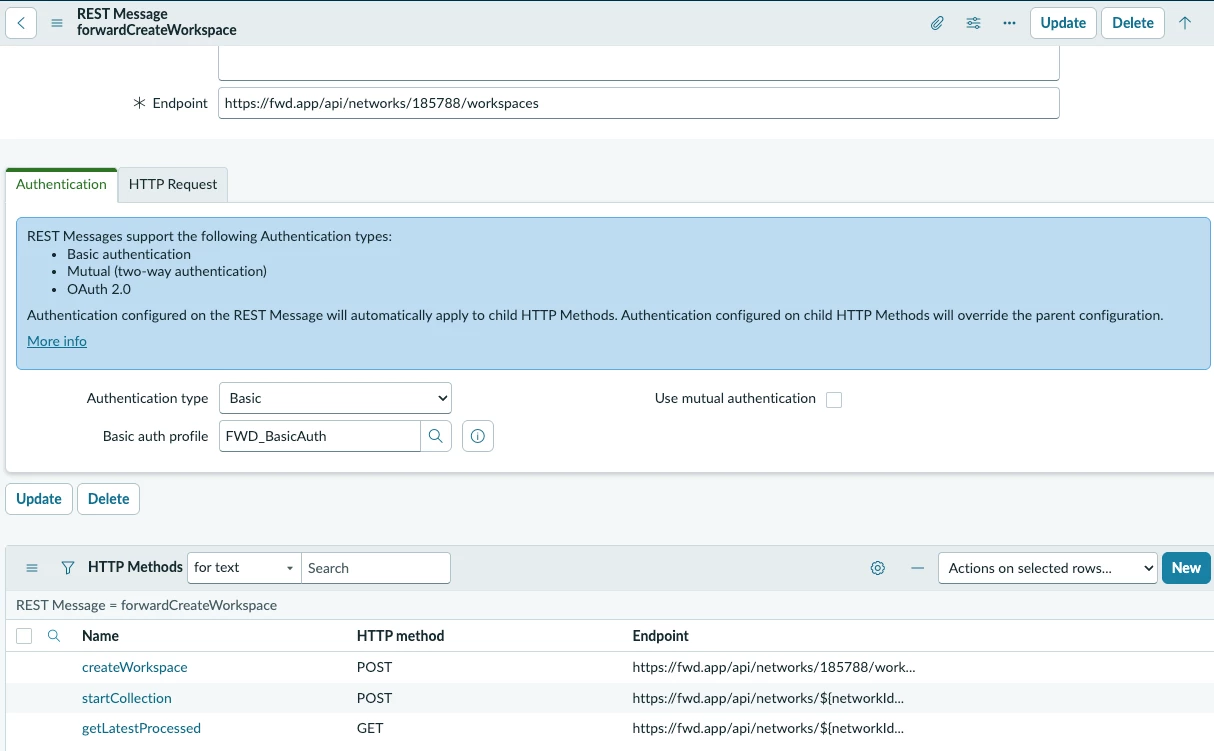
| Name | Verb | Endpoint |
|---|---|---|
| createWorkspace | POST | https://fwd.app/api/networks/<YOUR_FORWARD_NETWORK_ID>/workspaces |
| startCollection | POST | https://fwd.app/api/networks/${networkId}/startcollection |
| getLatestProcessed | GET | https://fwd.app/api/networks/${networkId}/snapshots/latestProcessed |
Why one endpoint is hardcoded and two aren't: createWorkspace always targets the parent network — hence the literal ID. The other two operate against a specific ticket's workspace, so they use ${networkId} as a placeholder that gets filled in by script at call time.
A placeholder like ${networkId} does nothing on its own — if a script calls startCollection without explicitly supplying that parameter, the literal text ${networkId} goes out in the URL and Forward will reject it.
Step 3 — Add a System Property for the Forward base URL
Goal: a place to store https://fwd.app, so nothing in the scripts hardcodes it.
Return to ServiceNow IDE.
Create a new file src/fluent/business-rules/create-workspace.now.ts — this will end up holding several things by the end of this cookbook, starting with this property:
import '@servicenow/sdk/global'

import { Property } from '@servicenow/sdk/core'

Property({
    $id: Now.ID['fwd_base_url'],
    name: 'forward.app.base_url',
    value: 'https://fwd.app',
    description: 'Forward Networks UI base URL (used to build diff links)',
    ignoreCache: true,
})
ignoreCache: true means gs.getProperty() will always read the live value instead of a cached one.
Once deployed, you'll find this record in System Properties → System Properties by searching for forward.app.base_url if you ever want to check or change it outside of code.
Step 4 — Define the Device lookup table
Goal: somewhere to get network device names for use in a change request ticket. In production use, this would use data from the Forward/ServiceNow CMDB integration.
Create src/fluent/tables/device.now.ts:
Device lookup table
import '@servicenow/sdk/global'
import { Table, StringColumn, Record } from '@servicenow/sdk/core'
export const u_1620558_tickets_netdevice = Table({
    name: 'u_1620558_tickets_netdevice',
    label: 'Network Device',
    schema: {
        u_name: StringColumn({ label: 'Device name', mandatory: true }),
    },
    display: 'u_name',
})

// Seed a few devices to work with. Swap these for your own device names —
// or better, wire this up to pull from CMDB once you're past prototyping.

Record({
    $id: Now.ID['router-1'],
    table: 'u_1620558_tickets_netdevice',
    data: { u_name: 'router-1' },
})

Record({
    $id: Now.ID['switch-1'],
    table: 'u_1620558_tickets_netdevice',
    data: { u_name: 'switch-1' },
})
This is the simplest table in the app — a name field and a couple of seed rows. Treat the hardcoded records as placeholders for your own environment; a real deployment should populate this from CMDB rather than by hand.
The name of the exported table needs to match the name inside each record. I don’t recall where the number came from. A prefix of ‘u_’ means that it is global in scope.
Step 5 — Define the Ticket table
Goal: the main table everything else in this app hangs off.
Create src/fluent/tables/ticket.now.ts:
Ticket table
import '@servicenow/sdk/global'

import {
    Table,
    StringColumn,
    ListColumn,
    MultiLineTextColumn,
    ChoiceColumn,
    UrlColumn,
    DateTimeColumn,
} from '@servicenow/sdk/core'

export const u_1620558_tickets_change = Table({
    name: 'u_1620558_tickets_change',
    label: 'Change Ticket',
    schema: {
        u_number: StringColumn({
            label: 'Number',
            readOnly: false,
            maxLength: 40,
            default: 'javascript:global.getNextObjNumberPadded();',
            attributes: { ignore_filter_on_new: true },
        }),
        u_subject: StringColumn({ label: 'Subject', mandatory: true, maxLength: 160 }),
        // 'verifying_change' sits between in_progress and closed
        u_state: ChoiceColumn({
            label: 'Ticket status',
            choices: {
                open: { label: 'Open' },
                in_progress: { label: 'In Progress' },
                verifying_change: { label: 'Verifying Change' },
                closed: { label: 'Closed' },
            },
            default: 'open',
            mandatory: true,
        }),
        u_description: MultiLineTextColumn({
            label: 'Description',
            maxLength: 4000,
            attributes: { rows: 10 },
        }),
        u_type: ChoiceColumn({
            label: 'Type of ticket',
            choices: {
                change_request: { label: 'Change request' },
                support_ticket: { label: 'Support ticket' },
            },
            default: 'support_ticket',
            mandatory: true,
        }),

        u_devices: ListColumn({
            label: 'Device(s)',
            referenceTable: 'u_1620558_tickets_netdevice',
        }),
        u_workspace_id: StringColumn({
            label: 'Forward workspace ID',
            readOnly: true,
            readOnlyOption: 'instance_configured',
        }),
        u_workspace_url: UrlColumn({
            label: 'Forward workspace',
            readOnly: true,
            readOnlyOption: 'instance_configured',
        }),
        u_close_reason: MultiLineTextColumn({ label: 'Case closure reason', maxLength: 4000 }),


        // --- Change verification (Forward snapshots) --------------------------
        u_base_snapshot_id: StringColumn({
            label: 'Base snapshot ID',
            readOnly: true,
            maxLength: 40,
        }),

        // Internal bookkeeping only — kept off the form later by UI policy
        u_pretrigger_snapshot_id: StringColumn({
            label: 'Pre-trigger snapshot ID',
            readOnly: true,
            maxLength: 40,
        }),

        u_verify_snapshot_id: StringColumn({
            label: 'Verification snapshot ID',
            readOnly: true,
            maxLength: 40,
        }),

        u_collection_triggered: DateTimeColumn({
            label: 'Collection triggered',
            readOnly: true,
        }),

        // URL type renders as a clickable link on the form
        u_diff_url: UrlColumn({
            label: 'Change diff',
            readOnly: true,
        }),
    },
    display: 'u_subject',
})
Every field this app writes to automatically from here on is set as readOnly: true. They're all populated by Business Rules or the poller, never typed in directly.
Step 6 — Business Rules
Goal: the four rules that actually drive the Forward integration.
Open the src/fluent/business-rules/create-workspace.now.ts and add each of these below the Property() block, in this order.
6a. Create the workspace when a change request is opened
Business rule to create workspace
import { BusinessRule } from '@servicenow/sdk/core'

BusinessRule({
    $id: Now.ID['br_create_fwd_workspace'],
    name: 'Create Forward Workspace',
    table: 'u_1620558_tickets_change',
    when: 'before',
    action: ['insert'],
    active: true,
    order: 100,
    script: `(function executeRule(current, previous) {
    if (current.getValue('u_type') != 'change_request') {
        return;
    }
    try {
        var deviceNames = [];
        var raw = (current.getDisplayValue('u_devices') || '').split(',');
        for (var i = 0; i < raw.length; i++) {
            var d = raw[i].trim();
            if (d.length > 0) deviceNames.push(d);
        }

// --- Make a REST call using forwardCreateWorkspace
// --- send the subject as the workspace name and the description
// --- as the note against the workspace

        var req = new sn_ws.RESTMessageV2('forwardCreateWorkspace', 'createWorkspace');
        req.setRequestBody(JSON.stringify({
            name: 'SNOW: ' + current.getValue('u_subject'),
            note: current.getValue('u_description') || 'Created from ServiceNow change ticket',
            devices: deviceNames,
            retentionDays: 2
        }));

        var resp = req.execute();
        var status = resp.getStatusCode();

// --- If we get 200 OK, then flag up the workspace ID that was created

        if (status == 200 || status == 201) {
            var body = JSON.parse(resp.getBody());
            current.setValue('u_workspace_id', body.id);
            current.setValue('u_workspace_url',
                gs.getProperty('forward.app.base_url', 'https://fwd.app') +
                '/?/search?networkId=' + body.id);
            gs.addInfoMessage('Forward workspace ' + body.id + ' created');
        } else {
            gs.addErrorMessage('Forward API returned HTTP ' + status + ': ' + resp.getBody());
        }
    } catch (e) {
        gs.addErrorMessage('Forward workspace creation failed: ' + e);
        gs.error('FWD BR exception: ' + e);
    }
})(current, previous);`,
})
This is the only piece that calls createWorkspace, and it's what populates u_workspace_id — every later step depends on that field being set.
6b. Capture the "before" snapshot ID using lastProcessed
Capture snapshot ID
BusinessRule({
    $id: Now.ID['capture_base_snapshot'],
    name: 'FWD - Capture base snapshot on ticket creation',
    table: 'u_1620558_tickets_change',
    when: 'async',
    action: ['insert'],
    order: 200,
    active: true,
    filterCondition: 'u_type=change_request^EQ',
    script: `(function executeRule(current, previous) {

// --- Calls the rest message to find the last snapshot ID

    function latestProcessed(networkId) {
        var r = new sn_ws.RESTMessageV2('forwardCreateWorkspace', 'getLatestProcessed');
        r.setStringParameterNoEscape('networkId', networkId);
        var resp = r.execute();
        if (resp.getStatusCode() != 200) {
            gs.error('FWD latestProcessed failed (' + resp.getStatusCode() + '): ' + resp.getBody());
            return '';
        }
        var body = JSON.parse(resp.getBody());
        return String(body.id || body.snapshotId || '');
    }

    try {
        var networkId = current.getValue('u_workspace_id');
        if (!networkId) {
            gs.warn('FWD ' + current.getValue('u_number') + ': no workspace ID; base snapshot not captured');
            return;
        }

        // A freshly created workspace may not have a processed snapshot yet;
        // rule 7d backfills the baseline in that case.

        var snapId = latestProcessed(networkId);
        if (!snapId) return;
        current.setValue('u_base_snapshot_id', snapId);
        current.setWorkflow(false);
        current.update();
    } catch (e) {
        gs.error('FWD captureBaseSnapshot exception: ' + e);
    }
})(current, previous);`,
})
This is where setStringParameterNoEscape('networkId', ...) happens — this is the line that fills in the ${networkId} placeholder we see in step 2.
6c. Trigger a new snapshot when ticket changes to "Verify Change"
Trigger new snapshot
BusinessRule({
    $id: Now.ID['trigger_verification_snapshot'],
    name: 'FWD - Trigger snapshot collection on verify',
    table: 'u_1620558_tickets_change',
    when: 'async',
    action: ['update'],
    order: 100,
    active: true,
    filterCondition: 'u_stateCHANGESTOverifying_change^u_type=change_request^EQ',
    script: `(function executeRule(current, previous) {
    function latestProcessed(networkId) {
        var r = new sn_ws.RESTMessageV2('forwardCreateWorkspace', 'getLatestProcessed');
        r.setStringParameterNoEscape('networkId', networkId);
        var resp = r.execute();
        if (resp.getStatusCode() != 200) {
            gs.error('FWD latestProcessed failed (' + resp.getStatusCode() + '): ' + resp.getBody());
            return '';
        }
        var body = JSON.parse(resp.getBody());
        return String(body.id || body.snapshotId || '');
    }
    try {
        var networkId = current.getValue('u_workspace_id');
        if (!networkId) {
            gs.error('FWD Cannot verify ' + current.getValue('u_number') + ': no workspace ID');
            return;
        }

// Remember what "latest" was before triggering, so the poller
// can tell when the new snapshot has actually finished.

        var preTrigger = latestProcessed(networkId);
        var r = new sn_ws.RESTMessageV2('forwardCreateWorkspace', 'startCollection');
        r.setStringParameterNoEscape('networkId', networkId);
        var resp = r.execute();
        var status = resp.getStatusCode();
        if (status < 200 || status >= 300) {
            gs.error('FWD startcollection failed (' + status + '): ' + resp.getBody());
            return;
        }
        current.setValue('u_pretrigger_snapshot_id', preTrigger);
        if (!current.getValue('u_base_snapshot_id') && preTrigger)
            current.setValue('u_base_snapshot_id', preTrigger);
        current.setValue('u_collection_triggered', new GlideDateTime());
        current.setWorkflow(false);
        current.update();
    } catch (e) {
        gs.error('FWD triggerVerificationSnapshot exception: ' + e);
    }
})(current, previous);`,
})
6d. Block closing a change request that was never verified
Block close if not verified
BusinessRule({
    $id: Now.ID['block_close_without_verification'],
    name: 'FWD - Block close without verified change',
    table: 'u_1620558_tickets_change',
    when: 'before',
    action: ['update'],
    order: 100,
    active: true,
    abortAction: true,
    filterCondition: 'u_stateCHANGESTOclosed^u_type=change_request^u_verify_snapshot_idISEMPTY^EQ',
    script: `(function executeRule(current, previous) {
    gs.addErrorMessage('This change ticket cannot be closed until the change has been verified. Use "Verify Change" to collect a post-change snapshot first.');
    current.setAbortAction(true);
})(current, previous);`,
})
abortAction: true cancels the save that's currently in flight — this is the hard gate that makes the whole verification flow mean something, rather than being an optional step someone can just skip.
Step 7 — Add a scheduled job that checs verification snapshots have completed
Goal: something that watches for the verification snapshot to finish processing on Forward's side, since startCollection only starts a job.
This runs every two minutes. Change the run_period value to poll quicker or slower.
Add this to the bottom of the same file:
Poller to check snapshot is complete
import { Record } from '@servicenow/sdk/core'

Record({
    $id: Now.ID['fwd_verification_poller'],
    table: 'sysauto_script',
    data: {
        name: 'FWD - Resolve verification snapshots',
        active: true,
        run_type: 'periodically',
        run_period: '1970-01-01 00:02:00',
        script: `(function () {
    function latestProcessed(networkId) {
        var r = new sn_ws.RESTMessageV2('forwardCreateWorkspace', 'getLatestProcessed');
        r.setStringParameterNoEscape('networkId', networkId);
        var resp = r.execute();
        if (resp.getStatusCode() != 200) {
            gs.error('FWD latestProcessed failed (' + resp.getStatusCode() + '): ' + resp.getBody());
            return '';
        }
        var body = JSON.parse(resp.getBody());
        return String(body.id || body.snapshotId || '');
    }
    var gr = new GlideRecord('u_1620558_tickets_change');
    gr.addQuery('u_state', 'verifying_change');
    gr.addNotNullQuery('u_collection_triggered');
    gr.addNullQuery('u_verify_snapshot_id');
    gr.query();
    while (gr.next()) {
        var networkId = gr.getValue('u_workspace_id');
        if (!networkId) continue;
        var latest = latestProcessed(networkId);
        if (!latest || latest == gr.getValue('u_pretrigger_snapshot_id'))
            continue; // our snapshot hasn't finished processing yet
        var base = gr.getValue('u_base_snapshot_id');
        gr.setValue('u_verify_snapshot_id', latest);
        if (base) {
            gr.setValue('u_diff_url',
                gs.getProperty('forward.app.base_url') +
                '/?/diffs?networkId=' + networkId +
                '&snapshotId=' + latest +
                '&baseSnapshotId=' + base);
        } else {
            gs.warn('FWD ' + gr.getValue('u_number') + ' has no base snapshot; diff URL not generated');
        }
        gr.setWorkflow(false);
        gr.update();
    }
})();`,
    },
})
Runs every 2 minutes, only looks at tickets actively mid-verification, and does nothing until it sees a snapshot newer than the one recorded right before startCollection was called — that comparison is why step 6c did a save u_pretrigger_snapshot_id.
At this point, create-workspace.now.ts contains:
- the property,
- all four Business Rules,
- this scheduled job
Five things in one file, which is how this app is structured.
Step 8 — Build the ticket form
Goal: a form with fields that show/hide based on ticket type and state.
Create src/fluent/forms/ticket-form.now.ts:
Ticket form
import '@servicenow/sdk/global'

import { Form, UiPolicy, default_view } from '@servicenow/sdk/core'

const TABLE = 'u_1620558_tickets_change'
export const ticketForm = Form({
    table: TABLE,
    view: default_view,
    sections: [
        {
            caption: 'Ticket Details',
            content: [
                {
                    layout: 'two-column',
                    leftElements: [
                        { field: 'u_type', type: 'table_field' },
                        { field: 'u_devices', type: 'table_field' },
                        { field: 'u_workspace_id', type: 'table_field' },
                        { field: 'u_workspace_url', type: 'table_field' },
                    ],
                    rightElements: [
                        { field: 'u_number', type: 'table_field' },
                        { field: 'u_state', type: 'table_field' },
                    ],
                },
                {
                    layout: 'one-column',
                    elements: [
                        { field: 'u_subject', type: 'table_field' },
                        { field: 'u_description', type: 'table_field' },
                    ],
                },
            ],
        },
        {
            caption: 'Change Verification',
            content: [
                {
                    layout: 'two-column',
                    leftElements: [
                        { field: 'u_base_snapshot_id', type: 'table_field' },
                        { field: 'u_verify_snapshot_id', type: 'table_field' },
                    ],
                    rightElements: [{ field: 'u_collection_triggered', type: 'table_field' }],
                },
                {
                    layout: 'one-column',
                    elements: [{ field: 'u_diff_url', type: 'table_field' }],
                },
            ],
        },
        {
            caption: 'Resolution',
            content: [
                {
                    layout: 'one-column',
                    elements: [{ field: 'u_close_reason', type: 'table_field' }],
                },
            ],
        },
        {
            caption: 'Activity',
            content: [
                {
                    layout: 'one-column',
                    elements: [{ type: 'formatter', formatterRef: 'Activities_Filtered' }],
                },
            ],
        },
    ],
})
Now add the UI Policies that control visibility of certain fields - put it in the same file:
UI Policy
UiPolicy({
    $id: Now.ID['ticket_number_readonly'],
    table: TABLE,
    shortDescription: 'Ticket number is read-only',
    onLoad: true,
    actions: [{ field: 'u_number', readOnly: true, visible: 'ignore', mandatory: 'ignore' }],
})

// Verification fields are only relevant to change requests

UiPolicy({
    $id: Now.ID['verification_fields_change_only'],
    table: TABLE,
    shortDescription: 'Verification fields visible for change requests only',
    onLoad: true,
    reverseIfFalse: true,
    conditions: 'u_type=change_request',
    actions: [
        { field: 'u_base_snapshot_id', visible: true, readOnly: 'ignore', mandatory: 'ignore' },
        { field: 'u_verify_snapshot_id', visible: true, readOnly: 'ignore', mandatory: 'ignore' },
        { field: 'u_collection_triggered', visible: true, readOnly: 'ignore', mandatory: 'ignore' },
        { field: 'u_diff_url', visible: true, readOnly: 'ignore', mandatory: 'ignore' },
    ],
})

// Internal plumbing field: not shown

UiPolicy({
    $id: Now.ID['hide_pretrigger_snapshot'],
    table: TABLE,
    shortDescription: 'Hide pre-trigger snapshot ID',
    onLoad: true,
    actions: [{ field: 'u_pretrigger_snapshot_id', visible: false, readOnly: 'ignore', mandatory: 'ignore' }],
})

// Close reason: hidden until the ticket is being closed, then mandatory

UiPolicy({
    $id: Now.ID['close_reason_when_closing'],
    table: TABLE,
    shortDescription: 'Close reason visible and mandatory when state is Closed',
    onLoad: true,
    reverseIfFalse: true,
    conditions: 'u_state=closed',
    actions: [{ field: 'u_close_reason', visible: true, mandatory: true, readOnly: 'ignore' }],
})
reverseIfFalse: true is what lets a policy undo its own actions the moment its condition stops being true — without it, you'd need a second, opposite policy for every one of these.
Step 9 — Add the UI Actions
Goal: the two statuses that move a ticket through its verification and closure flow.
Add these to the bottom of ticket-form.now.ts, alongside an updated import line:
UI Actions
import { UiAction } from '@servicenow/sdk/core'

UiAction({
    $id: Now.ID['verify_change_action'],
    table: TABLE,
    actionName: 'verify_change',
    name: 'Verify Change',
    hint: 'Trigger a Forward snapshot collection to verify this change',
    showUpdate: true,
    showInsert: false,
    condition:
        "current.u_type == 'change_request' && current.u_state != 'closed' && current.u_state != 'verifying_change'",
    form: { showButton: true, showContextMenu: false, showLink: false, style: 'primary' },
    client: { isClient: true, isUi16Compatible: true, onClick: 'verifyChange()' },
    script: `function verifyChange() {
    if (!g_form.getValue('u_workspace_id')) {
        g_form.showFieldMsg('u_workspace_id', 'A Forward workspace ID is required to verify the change.', 'error');
        return false;
    }

    g_form.setValue('u_state', 'verifying_change');
    g_form.addInfoMessage('Snapshot collection has been requested. The diff link will appear once the snapshot has processed.');
    gsftSubmit(null, g_form.getFormElement(), 'verify_change');
}

if (typeof window == 'undefined')
    serverVerify();
function serverVerify() {
    current.u_state = 'verifying_change';
    current.update();
    action.setRedirectURL(current);
}`,
    order: 100,
})

UiAction({
    $id: Now.ID['close_ticket_action'],
    table: TABLE,
    actionName: 'close_ticket',
    name: 'Close Ticket',
    hint: 'Close this ticket with a reason',
    showUpdate: true,
    showInsert: false,
    condition:
        "current.u_state != 'closed' && (current.u_type != 'change_request' || current.u_verify_snapshot_id != '')",
    form: { showButton: true, showContextMenu: false, showLink: false, style: 'destructive' },
    client: { isClient: true, isUi16Compatible: true, onClick: 'closeTicket()' },
    script: `function closeTicket() {
    var reason = g_form.getValue('u_close_reason');
    if (!reason) {
        g_form.setDisplay('u_close_reason', true);
        g_form.setMandatory('u_close_reason', true);
        g_form.showFieldMsg('u_close_reason', 'Please provide a reason before closing this ticket.', 'error');
        return false;
    }
    g_form.setValue('u_state', 'closed');
    gsftSubmit(null, g_form.getFormElement(), 'close_ticket');
}
if (typeof window == 'undefined')
    serverClose();
function serverClose() {
    current.u_state = 'closed';
    current.update();
    action.setRedirectURL(current);
}`,
    order: 200,
})
Notice the if (typeof window == 'undefined') pattern in both — one script, two execution contexts. The top half runs in the browser and does client validation; gsftSubmit() posts the form back to the server, where there's no window, so the "server" half runs and actually changes state. It looks like duplicated logic at a glance; it isn't.
Step 10 — Build and deploy
At the bottom of ServiceNow IDE, there is a build and deploy button which I have been using exclusively. There seem to be CLI ways to do the same thing but I’ve not found them.
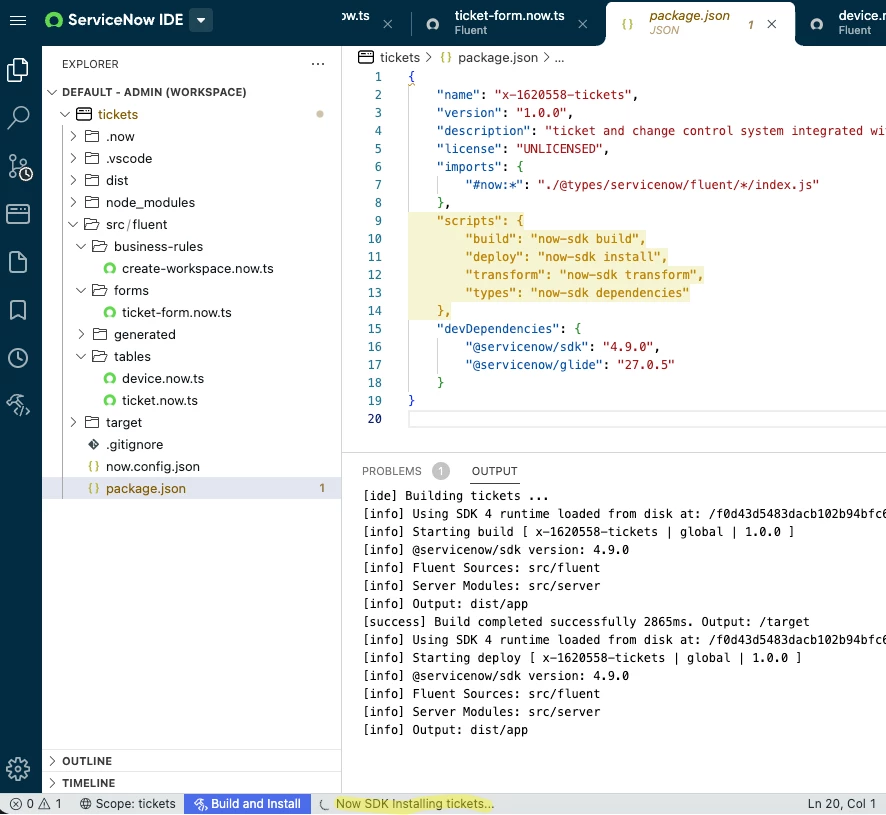
Congratulations :smiley: - you just deployed version 1.0.0 of a ticket and change control system!
When you return to the SNOW Classic UI, you might see a message like this:

Step 11 — Test it end-to-end
- Open the app: You will find this at this URL:
https://<YOUR PDI>.service-now.com/u_<YOUR APP PREFIX>_tickets_change_list.do
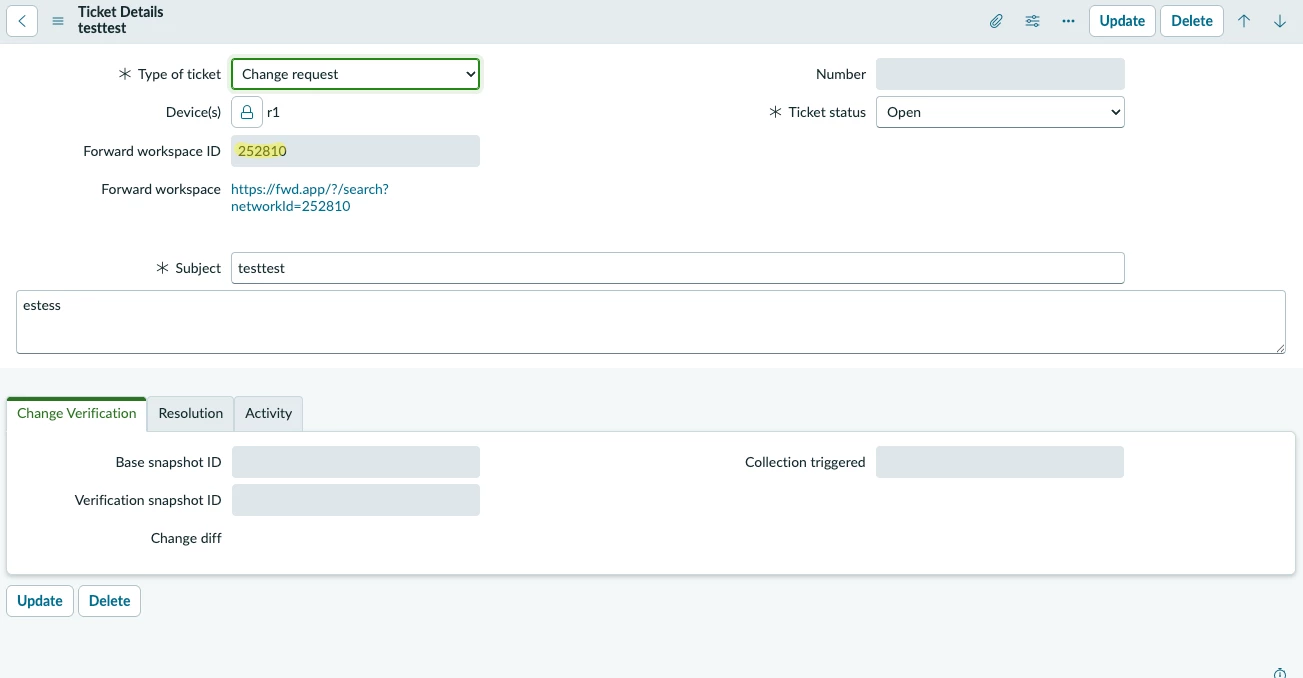
- Create a new ticket. Set Type to Change request, pick a device, fill in subject/description, save. You should see an info message confirming a Forward workspace was created, and u_workspace_id / u_workspace_url populate on the form.
- Wait a few seconds and go back to the ticket. You should see the workspace ID that was created with a hyperlink to it:
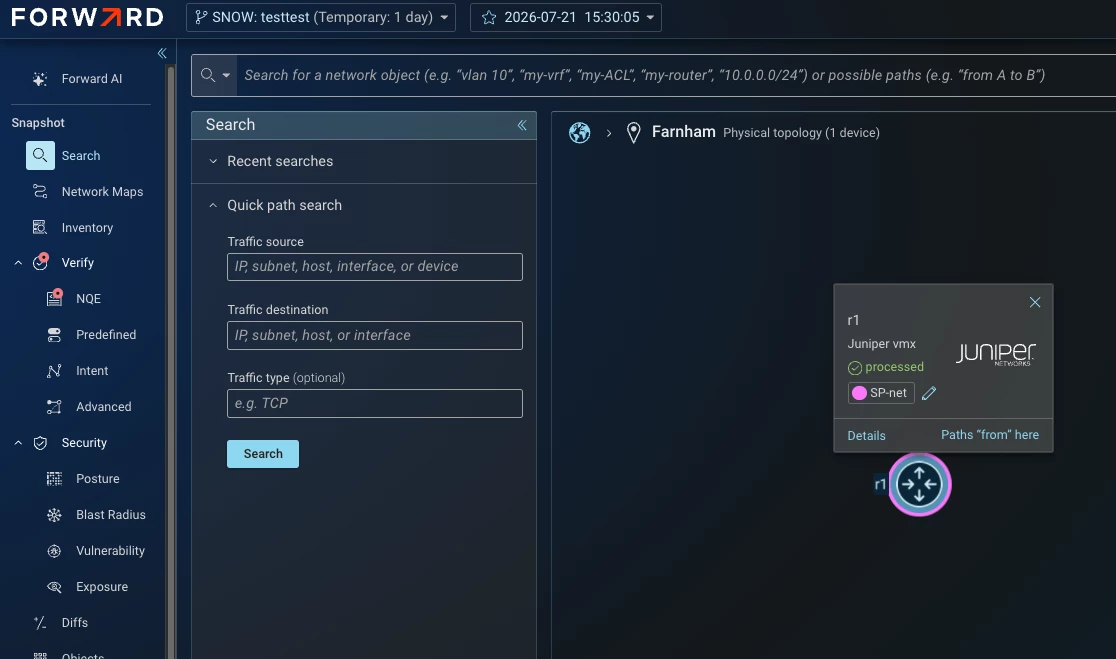
- Click that hyperlink and you should be taken to the workspace within Forward. In this case, there is just a single router in the workspace:
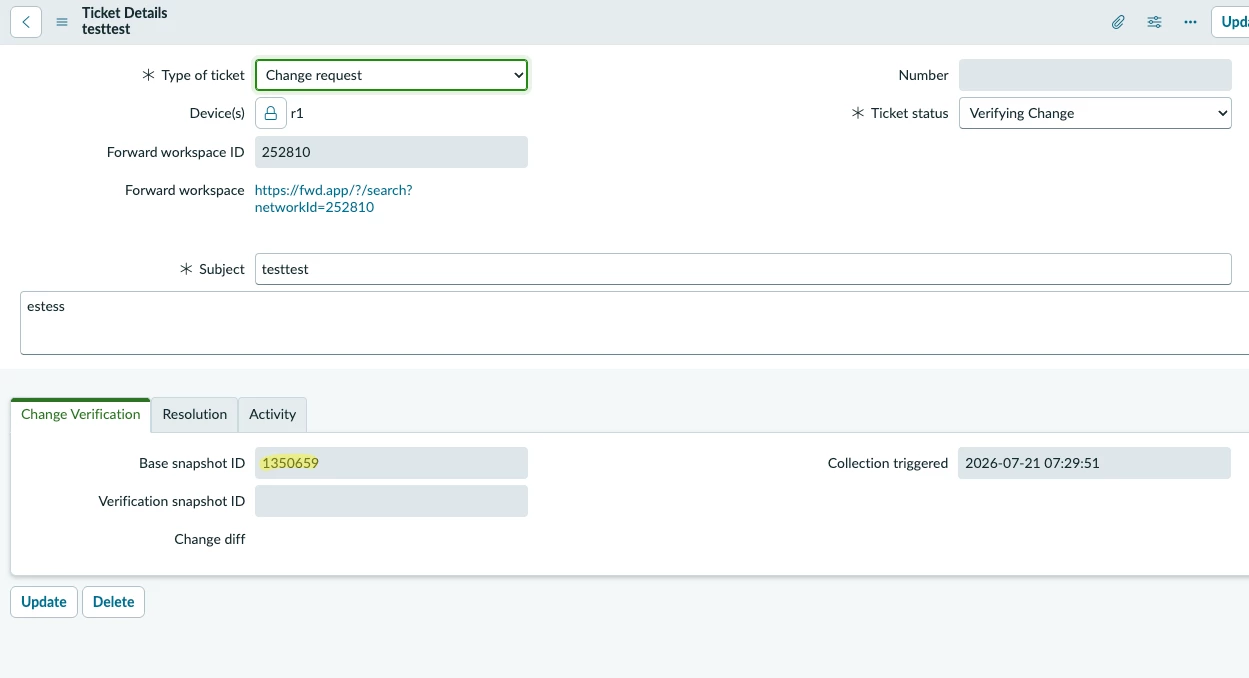
- Back in SNOW, change the ticket status from Open to Verifying Change and click update.
- Click Verify Change. The ticket moves to "Verifying Change" and u_collection_triggered gets a timestamp. The base snapshotID gets populated at this point:
- Wait for the poller (every 2 minutes) — once it resolves, refresh the ticket and you should see u_verify_snapshot_id populated and a clickable u_diff_url link.
- Check back in Forward that there are now two snapshots:
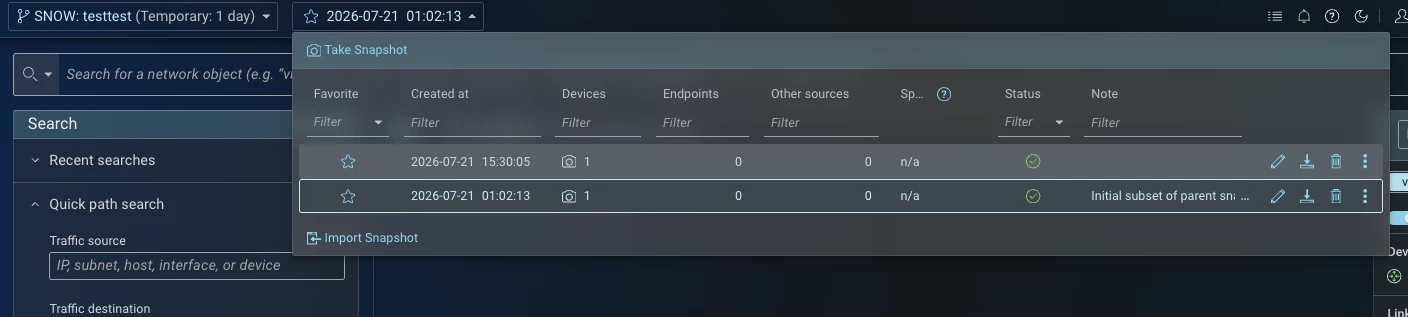
- Click Close Ticket — it should now work since a verification snapshot exists. Try clicking it before step 4 finishes to confirm the hard gate from Recipe 7d actually blocks you.
- Create a second ticket with Type set to Support ticket. Confirm none of the Forward fields ever appear, and that Close Ticket works immediately once a close reason is entered — support tickets should never touch Forward at all.
If all the above behave as described, the app is set up correctly.
Note: In step 1, I can’t find any way to get from the ServiceNow IDE or Studio to the app you are creating. If anyone knows how to do this, please let me know.
Step 12 – Create a sequential ticket number system in SNOW
There’s a read-only field in the above screenshots for a ticket number. At the moment it is blank, so let's create a numbering system for the tickets.
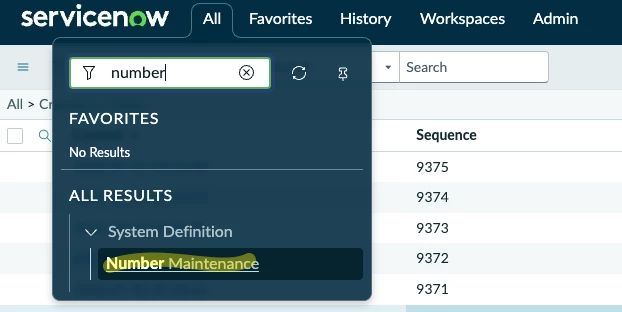
- Create a sys_number record with prefix FWD-, digits 4 (padded). In the classic UI, search Number Maintenance:
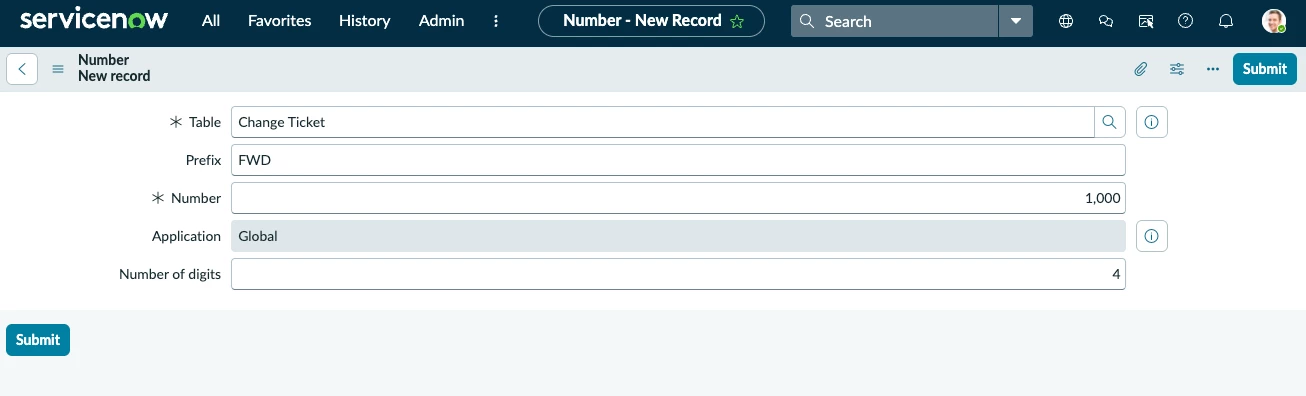
- Click the New button and put your table technical name (see the top of the tickets table) - e.g. u_1620558_tickets_change
- This should resolve to the human table name. Give the number a prefix such as FWD, set the other values as you need and click submit:
- Return to the ticket list screen at https://dev439727.service-now.com/u_1620558_tickets_change_list.do
Create a new ticket and you should now have an FWD number in the top right of the screen: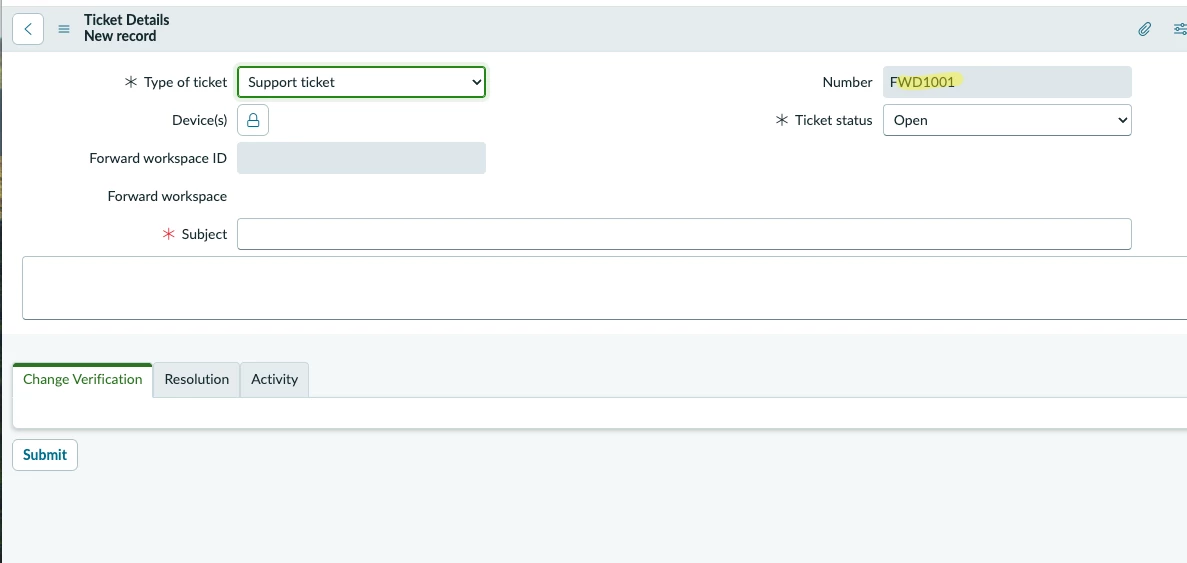
This is the standard ServiceNow platform pattern for task-style numbering (same mechanism CHG/CTASK/INC use), so every new ticket auto-populates u_number as FWD-1001, FWD-1002, etc.
The picker for the Table field on the Number record can be finicky since typing "Change Ticket" collides with out-of-box change tables — typing the technical name u_1620558 instead finds it unambiguously.
Where to go from here
A few things worth revisiting once this is working:
- The device table is a hardcoded seed list. Fine for testing; a real deployment should pull device names from CMDB instead.
- Global scope was a deliberate simplification for this cookbook. Before this goes anywhere near production, revisit whether it should be a scoped app instead
- Putting ticket number in to workspace name would be a good idea
- Putting a ticket number into the second snapshot would be a good idea.
- Currently this does not gracefully handle creating a change request with no devices in the list. Need to add some logic to prevent case creation without at least one device.
- As above, adding devices to a change might also not work in this version.
Appendix: term cheat-sheet
- $id: Now.ID[...] — a stable, source-controlled identifier Fluent uses so redeploying the same script updates the same record instead of creating a duplicate.
- gs — the global "Glide System" API available in every server-side script (gs.info, gs.error, gs.addInfoMessage, etc.).
- GlideRecord — the primary API for querying/updating table rows.
- RESTMessageV2 — the API for invoking a stored REST Message from script.
- abortAction — a Business Rule flag that cancels the database operation currently in flight.
Troubleshooting
Checking REST calls work
SYSLOG URL to check if outbound REST calls are going out when you create a ticket or change its status:
https://dev439727.service-now.com/now/nav/ui/classic/params/target/sys_outbound_http_log_list.do