

The new ordered collections feature streamlines how you pull, organize, and present data from your inventory. It helps you quickly surface results—like the top 10 most vulnerable devices—organized the way you want, so you can act faster and share clearer insights with your team.
Let’s walk through what ordered collections can do, when they’re most useful, and how to use the new syntax to save time and reduce manual filtering.
Introduction: Why Ordered Collections Matter
Before ordered collections, finding and organizing your top results (say, the most vulnerable devices) meant extra filtering and sorting. Reports could show too many results, scattered by category, forcing you to click around or explain sorting steps to others. Now, ordered collections make it easy to:
-
Limit results to exactly what you want (like the top 10)
-
Sort by multiple criteria, such as vulnerability count and operating system
-
Use familiar, flexible SQL-like syntax
-
Handle both ordered (list) and unordered (bag) collections
Let’s see how it works from query to result.
Steps to Use Ordered Collections
Step 1: Start in your inventory and view the report showing vulnerabilities. Notice how “Top 10” may show more than 10 results and lacks clear order.
Step 2: Try sorting by a single field using your current filters. You’ll see that organizing by operating system or CVE count helps, but it’s hard to combine them, and excess results still clutter the view.
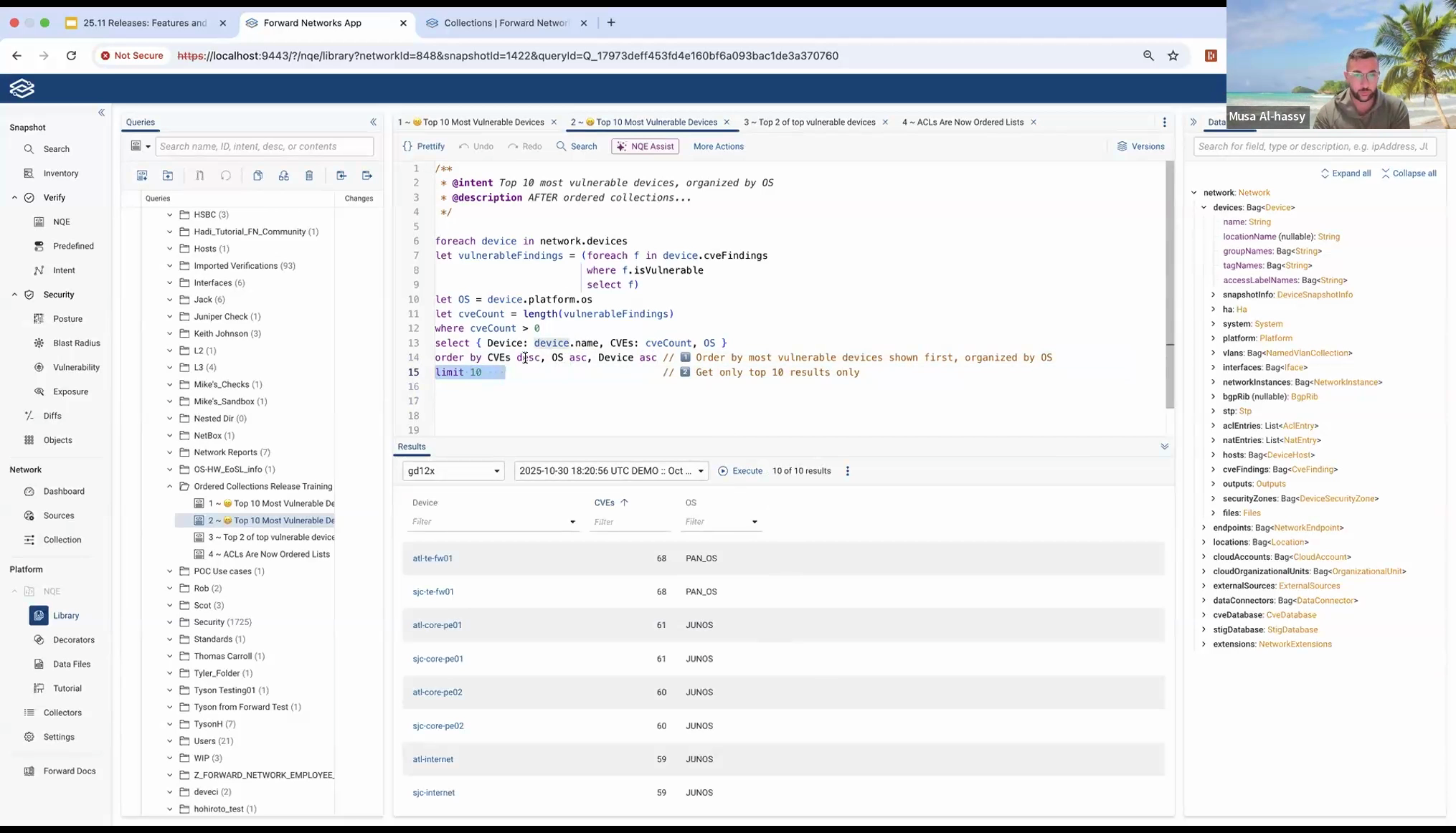
Step 3: Use the new ordered collections feature to build a concise, well-organized query. Add an `ORDER BY` clause (for example, `ORDER BY CVE count`) and `LIMIT` (for example, `LIMIT 10`) to fetch just the top results.
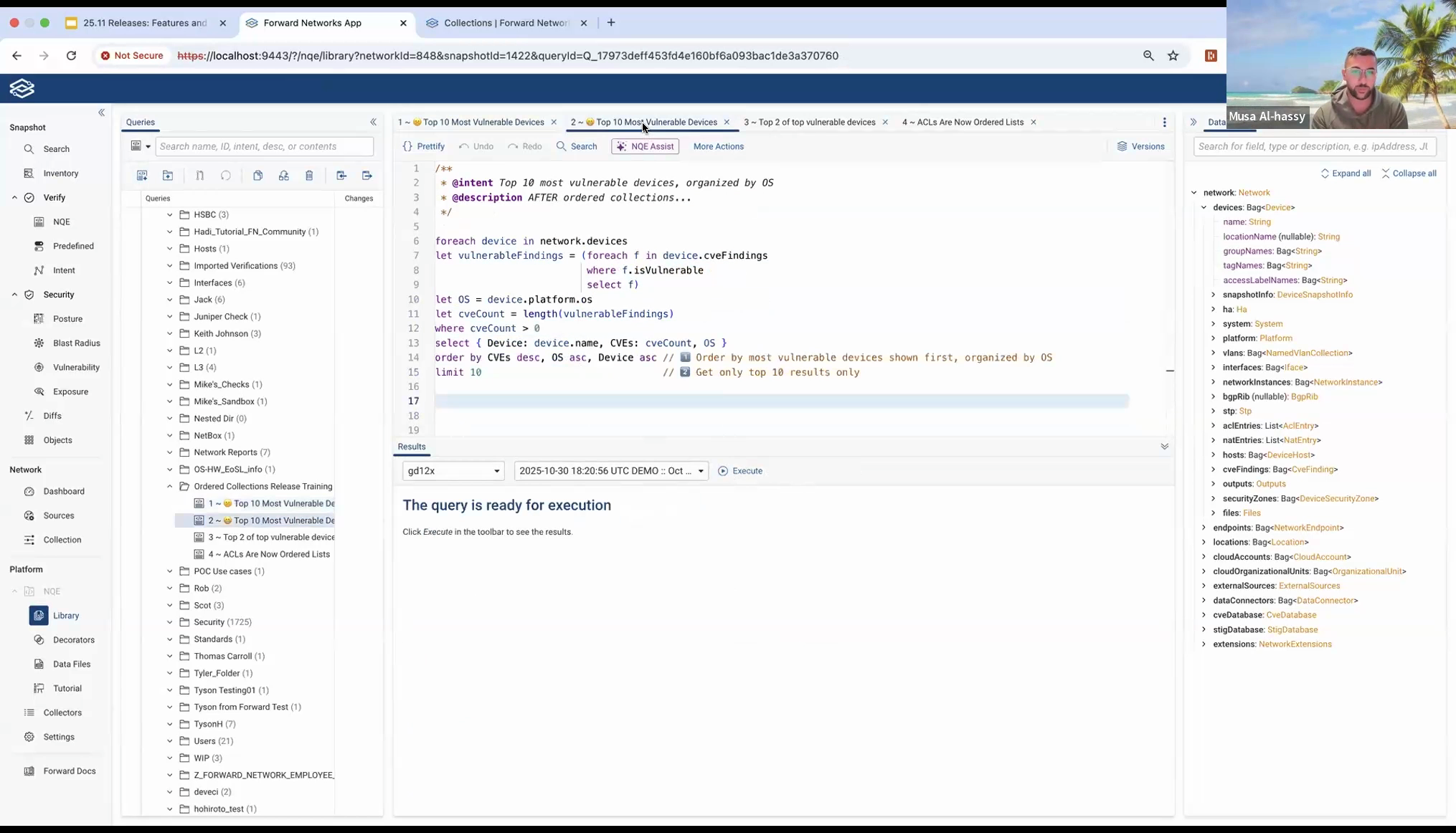
Step 4: Adjust the `ORDER BY` clause to sort on multiple fields, such as ordering first by operating system, then by vulnerability count. The result: clean, focused, and self-explanatory data, ready to share.
Step 5: Apply list indexing to pull specific nested results. For example, to find the two most severe vulnerabilities per device, use indexing within your ordered collection.
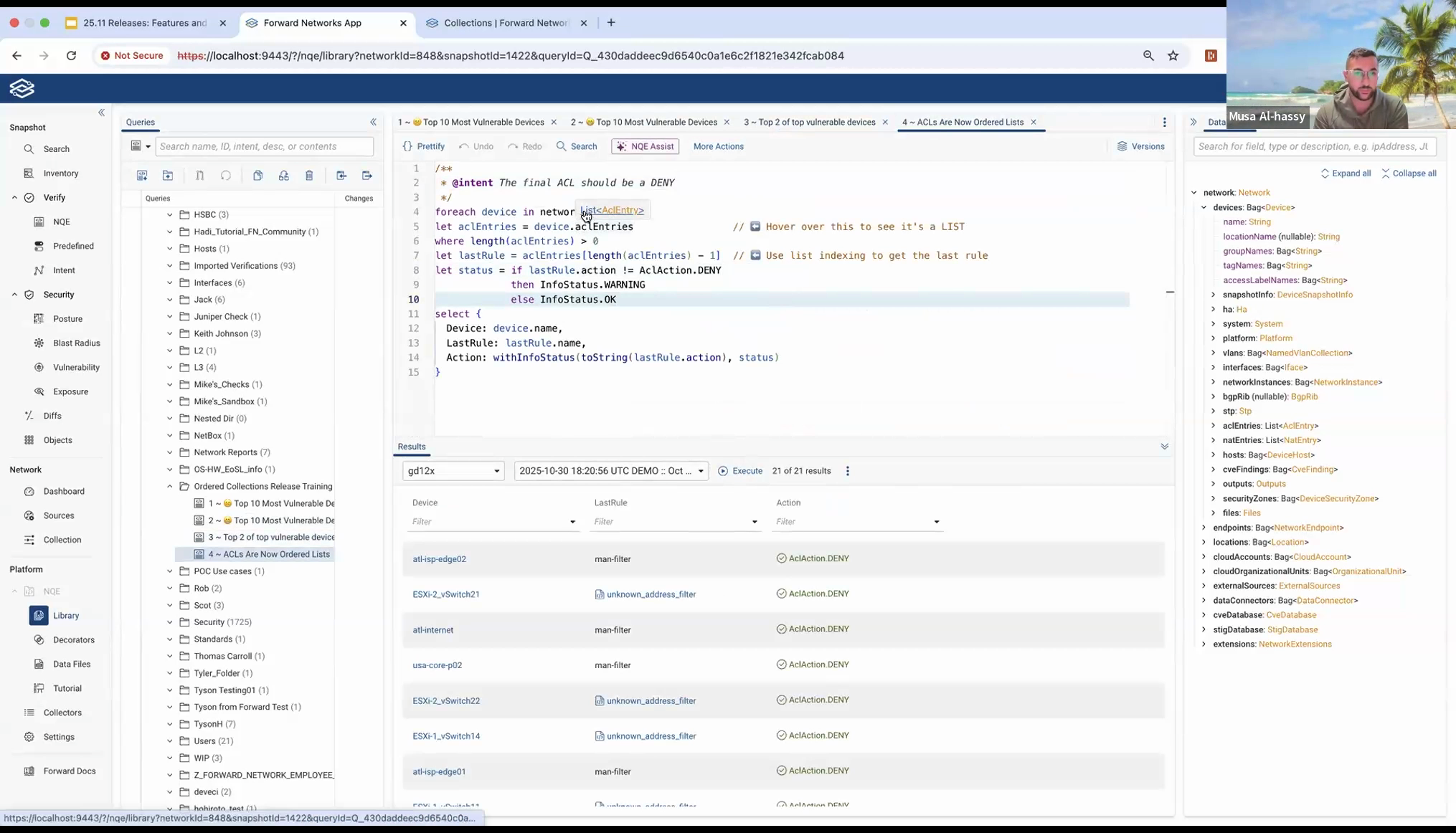
Step 6: Understand the difference between collection types. A list is ordered—supporting indexing and `ORDER BY`—while a bag is unordered. When working with features like network ACL entries, you can access the last element of a list directly, but not with a bag.
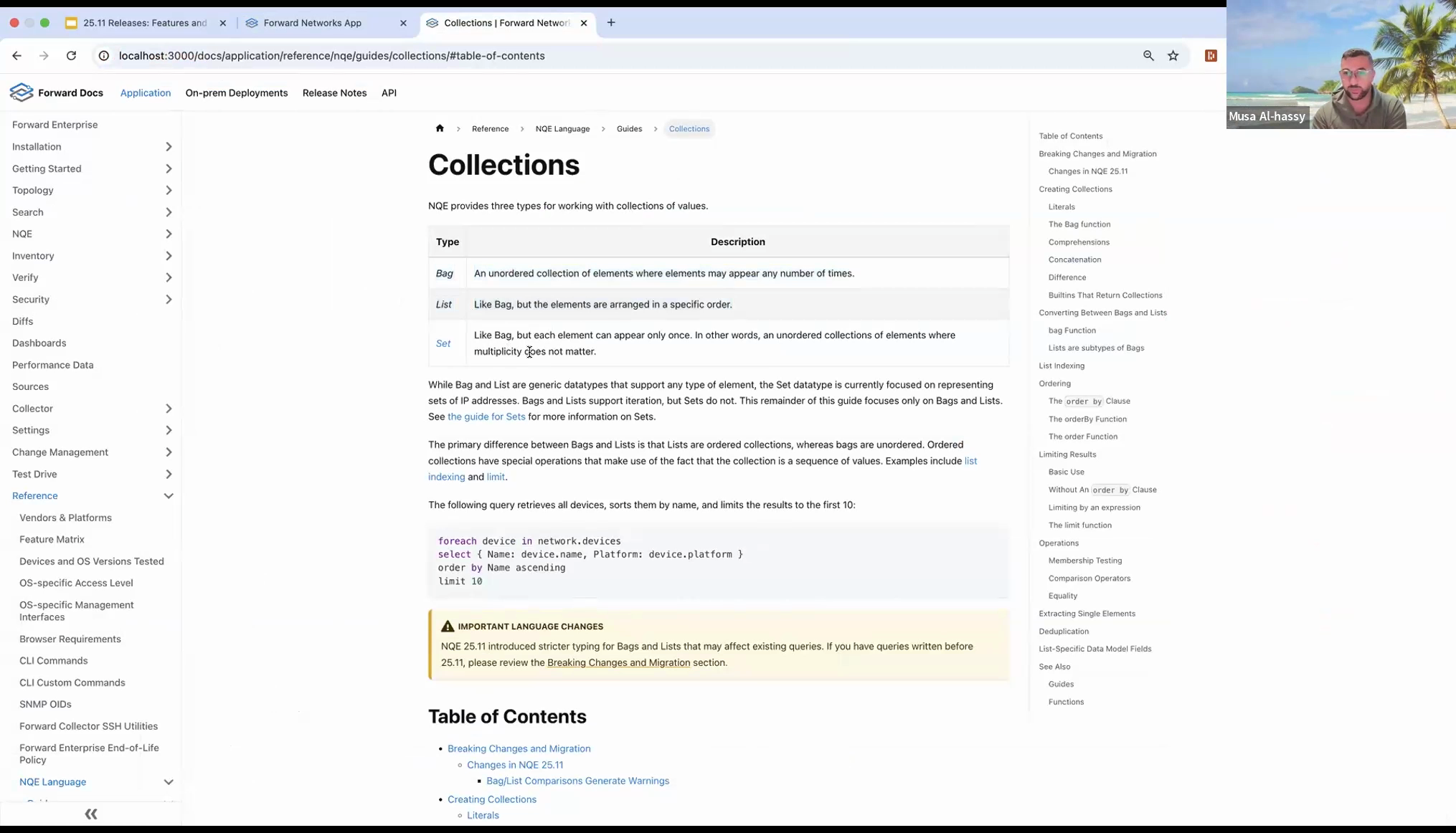
Step 7: Consult the new comprehensive collections guide for more on bags, lists, and sets. The guide offers examples, syntax, detailed method explanations, and migration tips for adapting old queries.
Tips, Compatibility, and Collection Types
Step 1: If your query expects a list but gets a bag, you might see a warning. For lists, keep in mind that equality now depends on item order.
Step 2: Use `ORDER BY` on unordered collections (bags) to generate an ordered result (list). For recurring queries, always order before relying on list behaviors such as indexing.
Step 3: Keep in mind that applying a `LIMIT` still requires sorting the entire collection first. This means the database gathers, sorts, and then limits the data—so performance optimizations for this are on the roadmap.
Conclusion
Ordered collections offer a simple, powerful way to focus data queries—bringing just the entries you need, in the order you want, without tedious manual sorting. Whether you’re surfacing top vulnerabilities or troubleshooting issues, this feature removes ambiguity, speeds up your workflow, and helps your team collaborate on clean, actionable data.
For in-depth examples and guidance on migrating older queries, check out the collections guide included in the documentation. Try out ordered collections in your daily reports and see how much easier it is to find and share the insights that matter most.