
New in 26.1, Forward now supports Dark Mode across the entire application, providing a consistent, high-contrast experience in all major areas of the product, including dashboards, topology views, and the NQE/code editor.
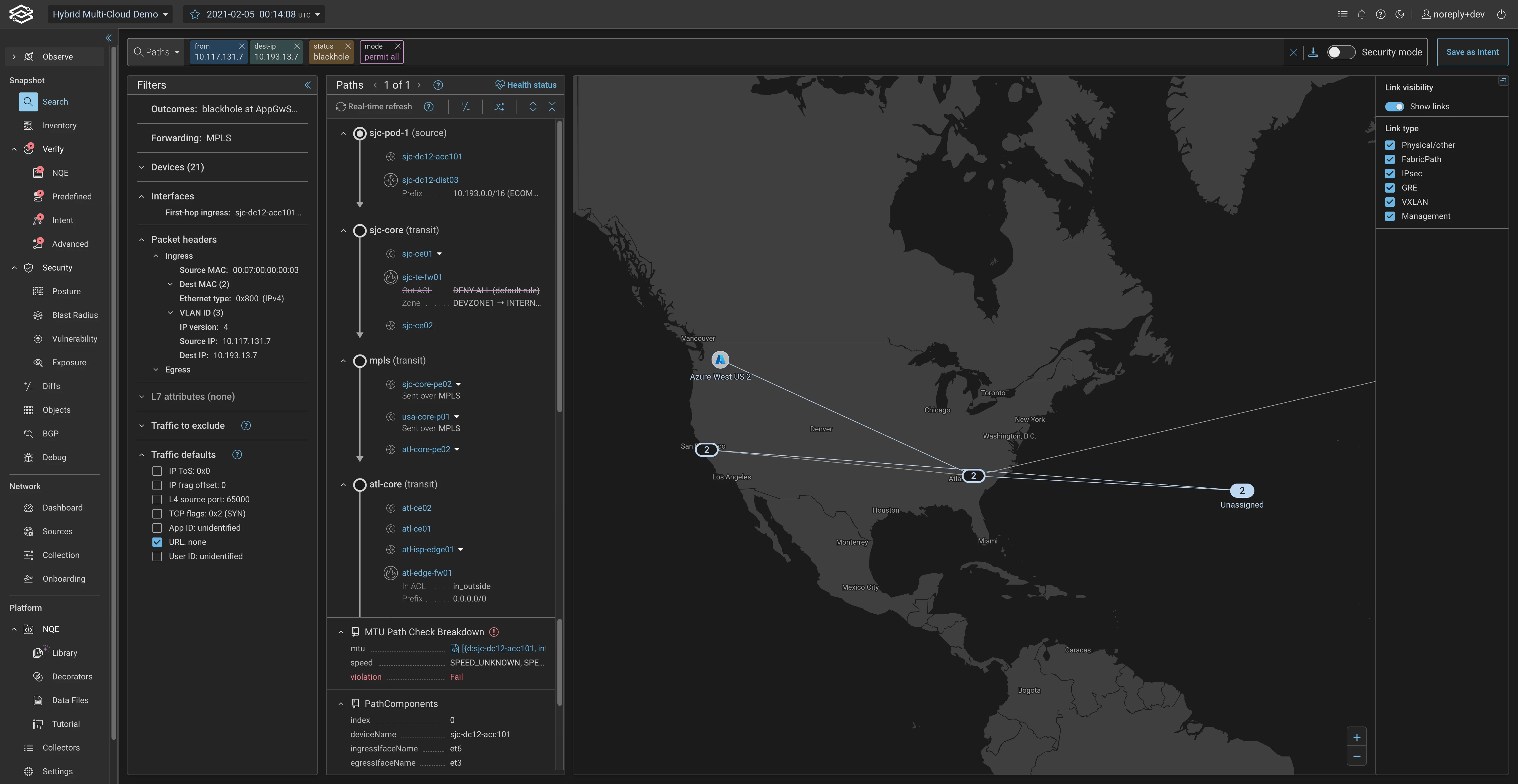
Users can choose between Light Mode, Dark Mode, or an Auto setting that follows their operating system theme. This preference is saved at the user level, so your experience stays consistent across sessions and devices. The latest release also improves text contrast to enhance readability in low-light environments.
Dark Mode is useful in several common operating scenarios:
Network Operations Centers (NOCs)
Large wall displays running Forward dashboards for long periods benefit from Dark Mode by reducing glare and eye strain, making KPIs, alerts, and topology changes easier to monitor around the clock.
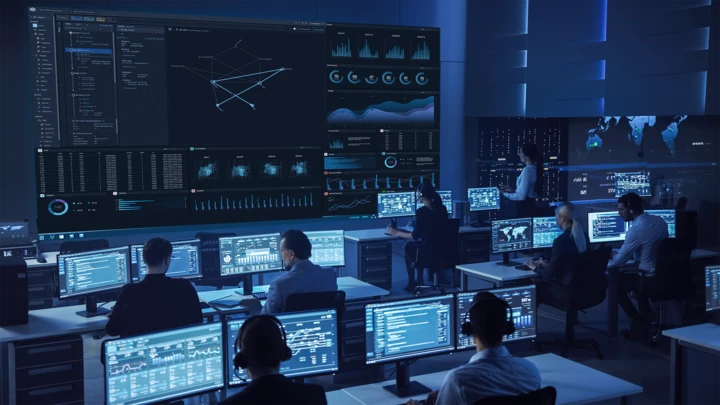
Low-light or “dark office” environments
For teams working evening shifts, on-call rotations, or in dimly lit rooms, Dark Mode provides a more comfortable viewing experience and helps reduce visual fatigue during extended troubleshooting sessions.
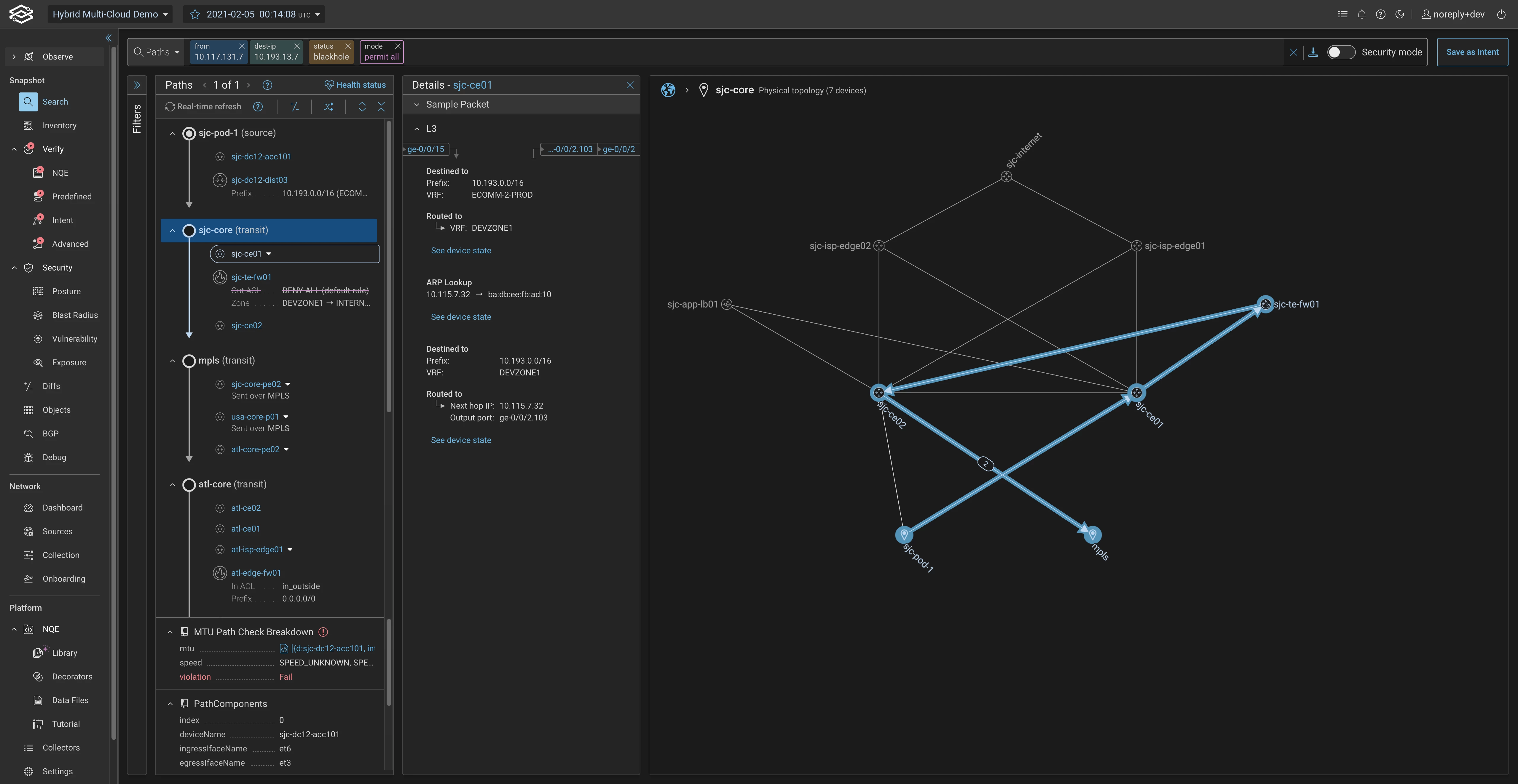
Topology analysis and troubleshooting
Topology maps (including BGP, OSPF, and other protocol views) now render cleanly in Dark Mode, allowing engineers to trace paths, review adjacencies, and inspect routing behavior without switching back to a bright UI.
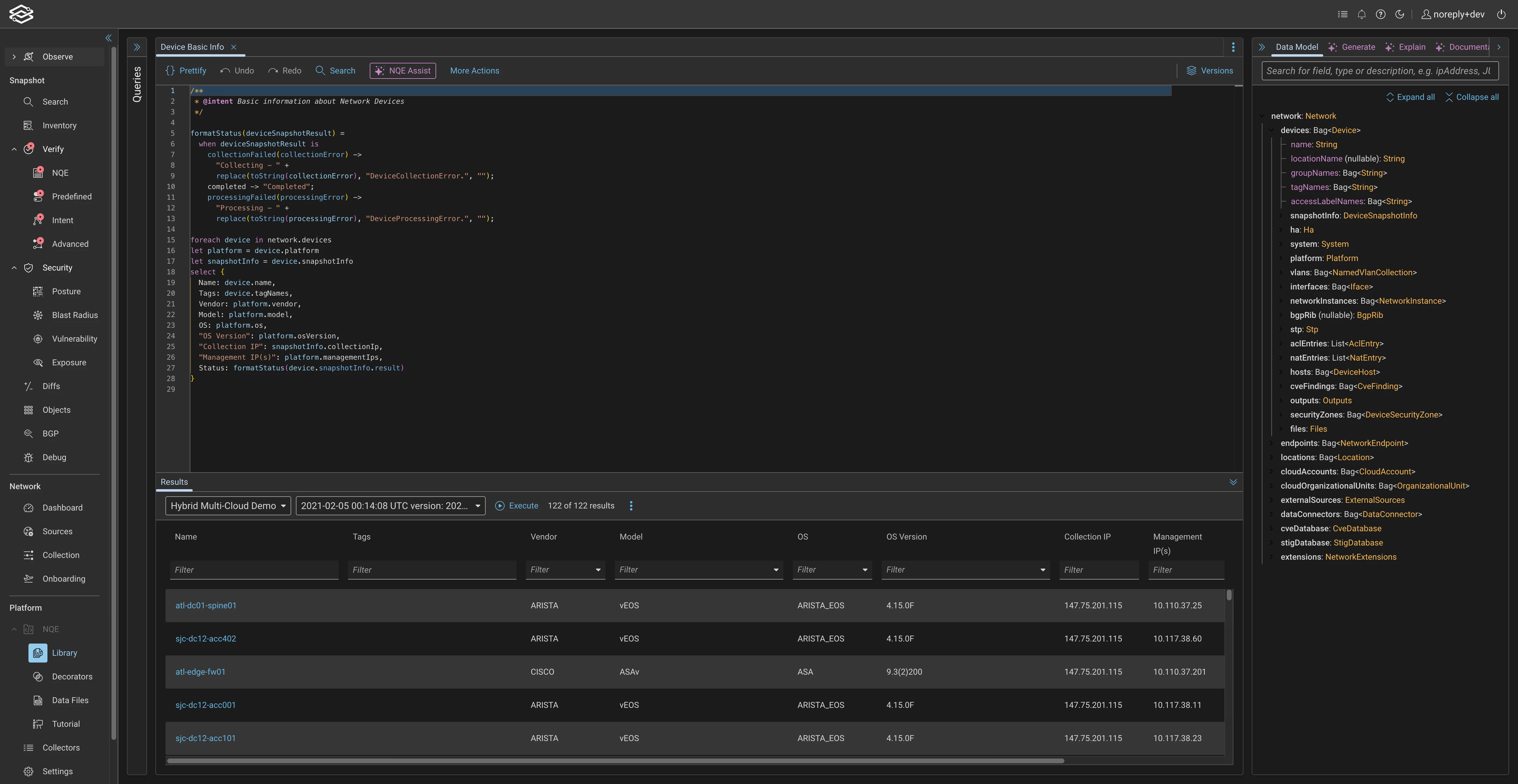
Code and query development
The NQE code editor now fully supports Dark Mode, giving engineers a familiar, IDE-like experience when writing and reviewing queries, policies, and automation logic.
Personal preference and accessibility
Some users simply find dark interfaces easier to read or less distracting. With user-level settings and OS-sync, each engineer can work in the mode that best suits their eyes and workflow.
For users who customize colors in topology views (such as OSPF or annotations): Forward respects your chosen color palette when switching modes. The default palettes are designed to work well in both light and dark themes, but if you rely on custom colors, you may want to adjust them for optimal contrast in Dark Mode.
Whether you’re monitoring production networks on a NOC wall, troubleshooting late at night, or just prefer a darker interface, Dark Mode is now a first-class, fully supported experience throughout the Forward platform.