


In release 26.1 we brought out a feature that eases the onboarding of new devices quite a lot. If you have a good naming convention (or three, in the case of some of my customers) you can use this to good effect.
Let’s see how it works.
Here are some devices I just added (one of which isn’t collecting yet, I know). They are all located in a site called Farnham, but initially go into the Default unassigned location:
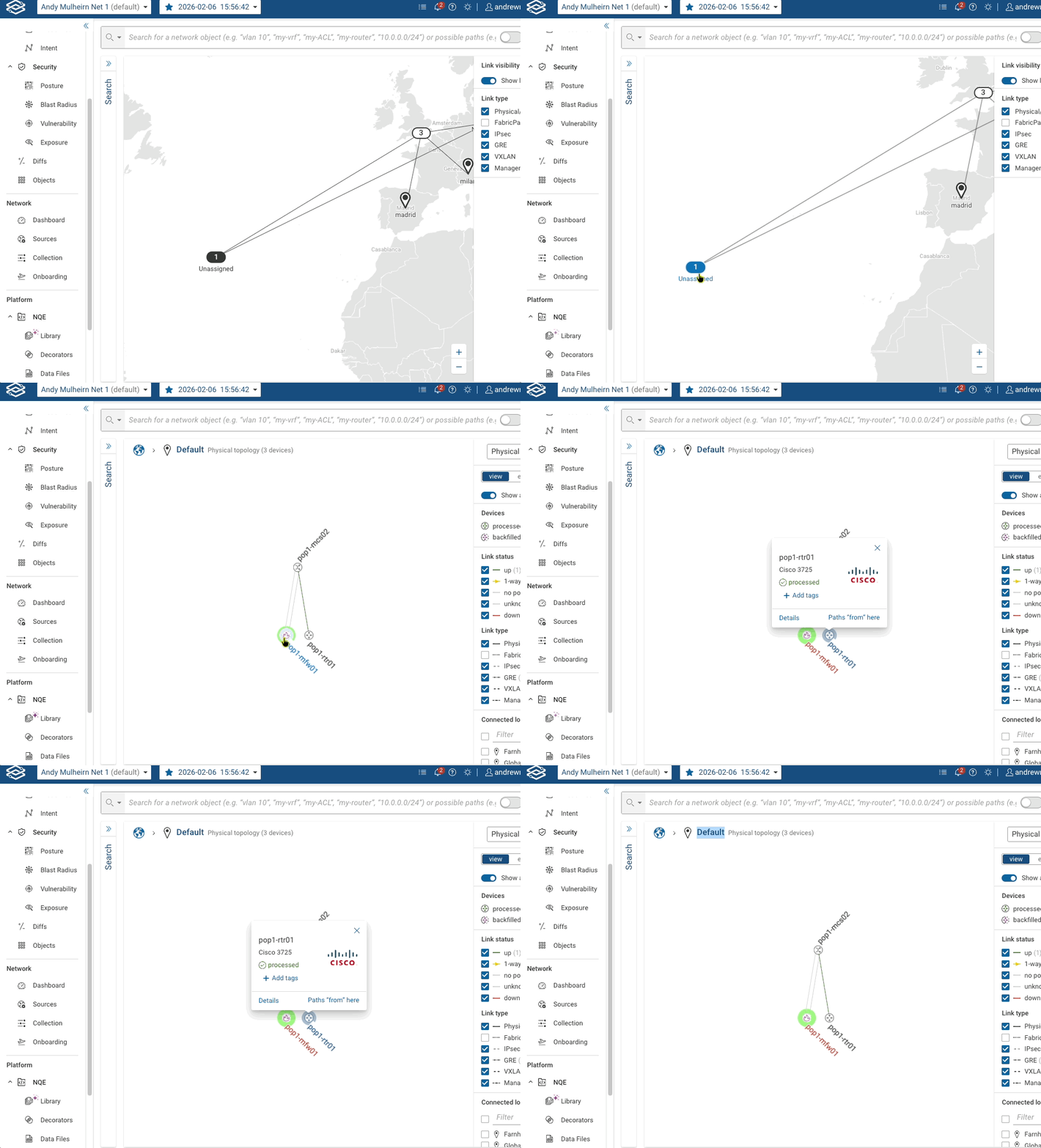
Imagine I had just added a few hundred devices using a CSV or something. Moving all these unassigned devices into locations would be a long job, right?
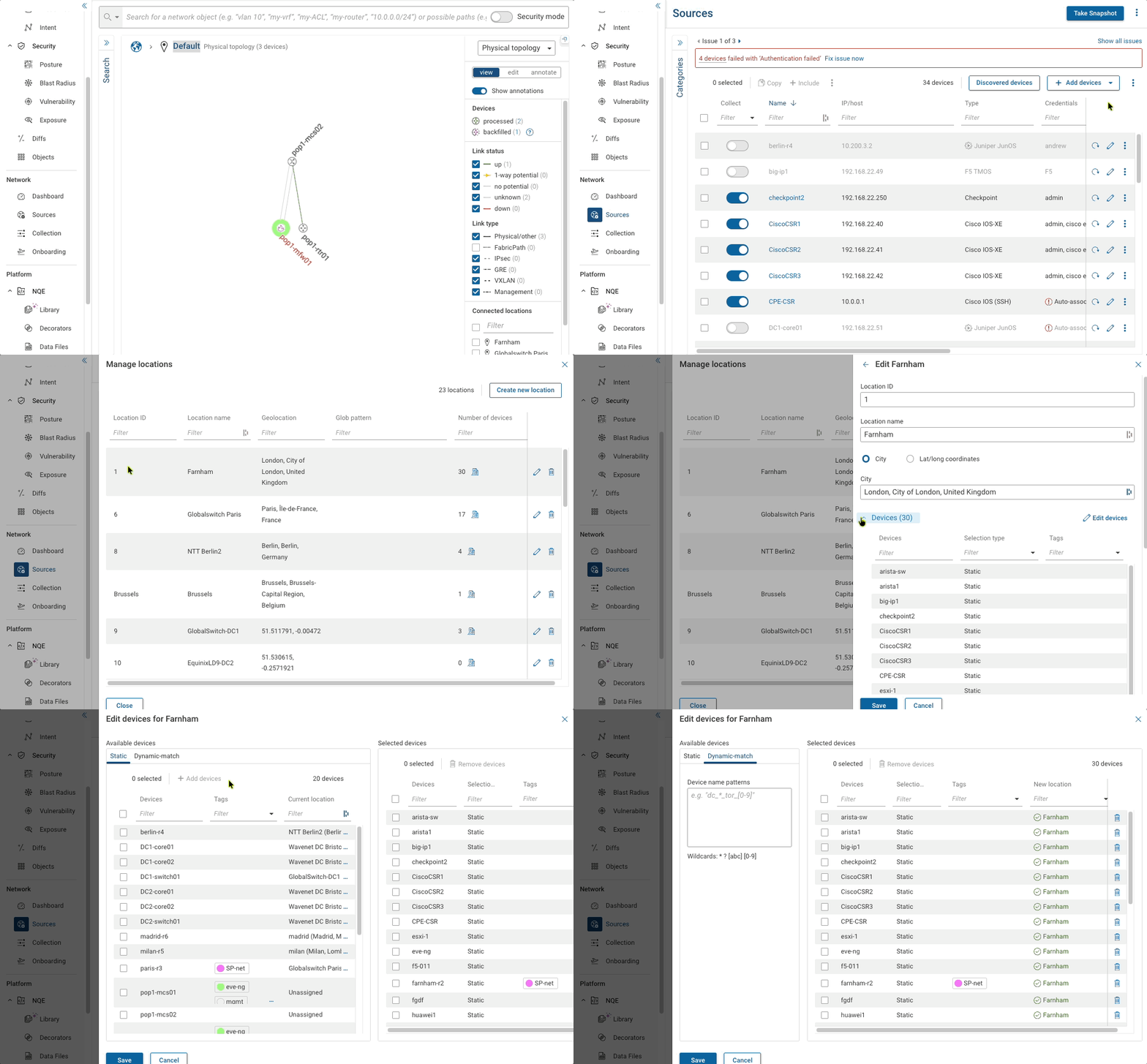
Not any more…. Now we can use wildcard matching to put them into a location based on their name. The steps are shown in the GIF below:
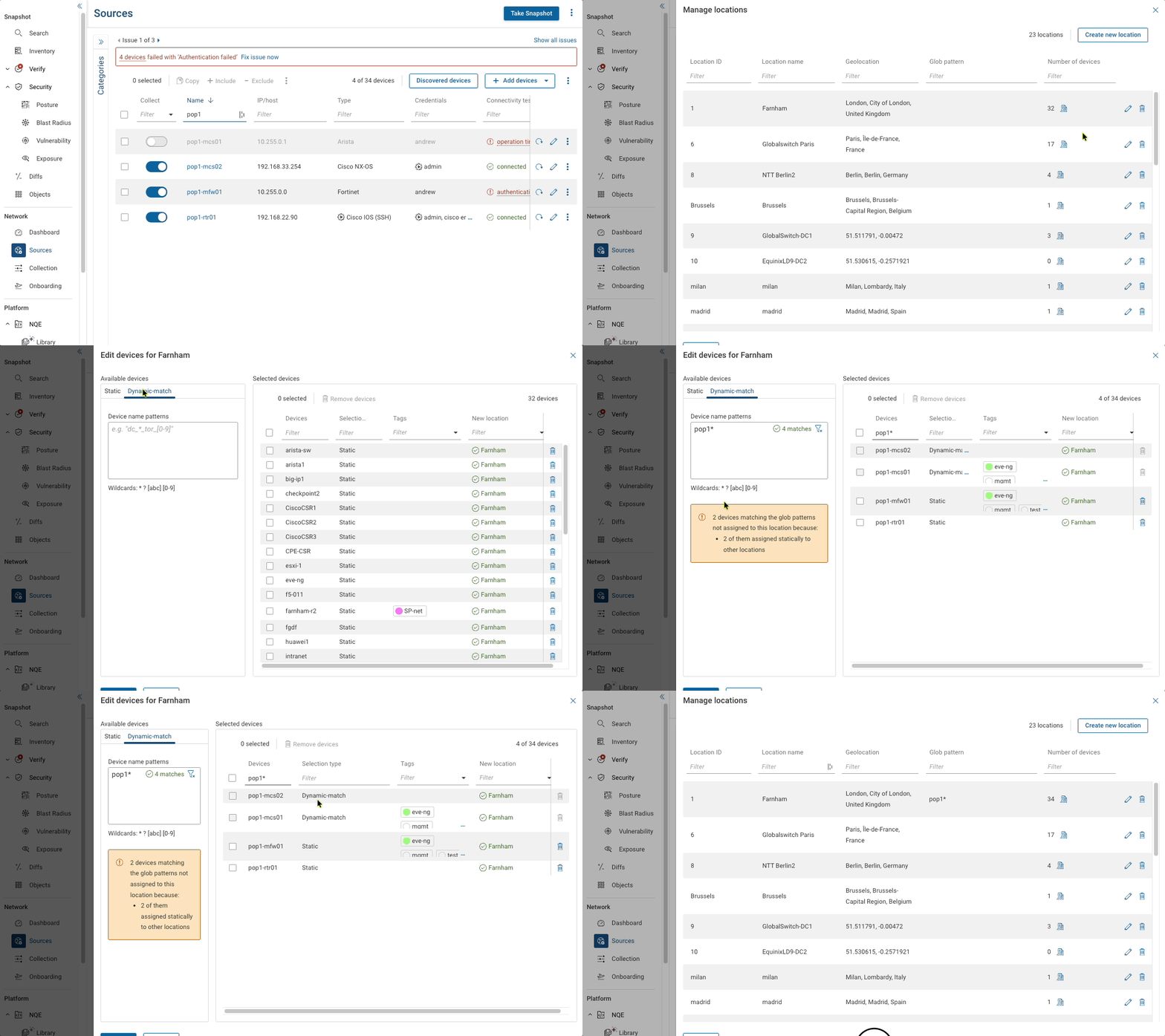
- open up the Manage Locations menu (in Sources)
- edit the location of interest
- edit the device list at that location
- choose the Dynamic Match option
- enter a pattern to match on - e.g. pop1*
Now we define the filter. Wildcards permitted are these: * ? [abc] [0-9]
Once written, you can click the funnel icon to see what you are matching and verify it is correct:
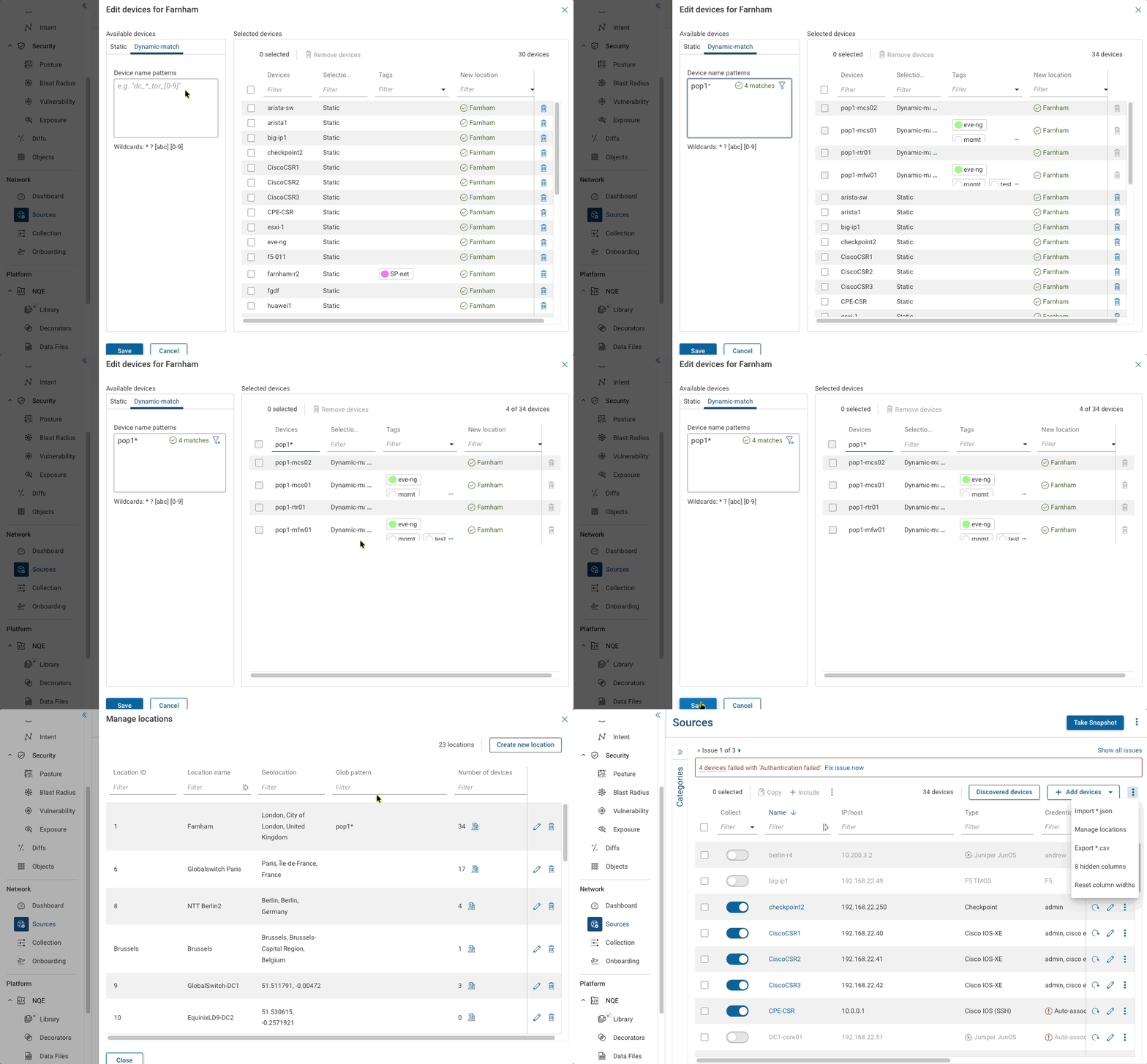
You see above that the ‘new location’ for these devices is Farnham, and that they are a ‘dynamic match’ rather than static.
Now that is done, lets go and look at the Farnham location - we can see the devices have been placed on the map which I will tidy up a little bit.
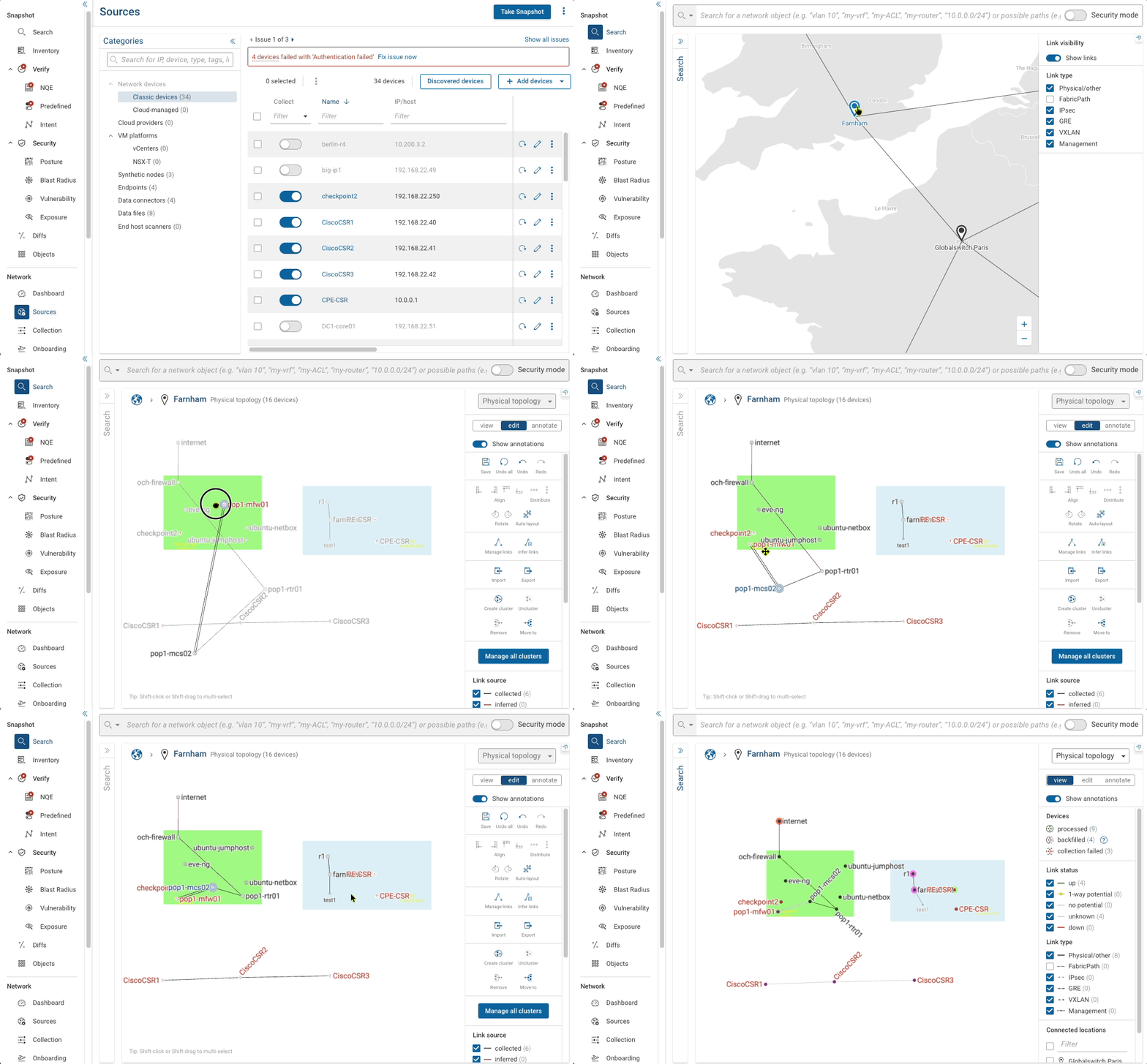
Notes
Now there are a few things to know about this process.
🍔 Firstly, static assignment overrules dynamic assignment. There has to be some kind of hierarchy to deal with conflicts of course. Below, we can see that a message appears saying that two devices out of the four matches are already assigned statically:
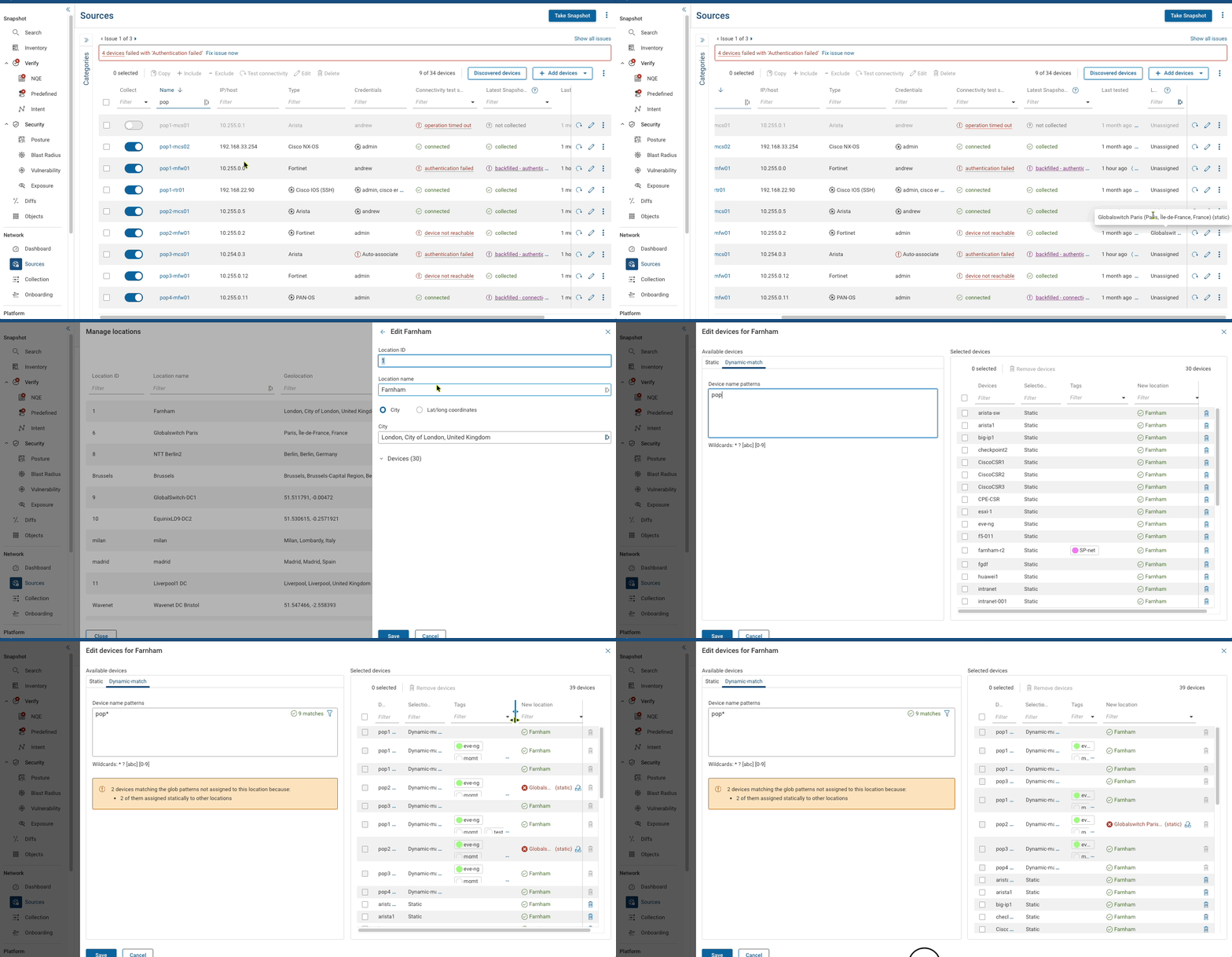
🌶 Secondly, if your glob or pattern matches things in other locations, it will highlight this in red. Perhaps you’ve not been specific enough? If that isn’t the case, you have the option to move them to the location you are editing:
🍎 Third: If the device name matches several location globs, the tie-breaker will be the lowest location ID
🍯 Fourth: If you remove a wildcard pattern from a location, you will be prompted what to do with the devices that had been dynamically assigned.
(Can you tell I was hungry while writing this?)
This feature is documented here. You will need to log in to see the details.